> ## Documentation Index
> Fetch the complete documentation index at: https://docs.subverseai.com/llms.txt
> Use this file to discover all available pages before exploring further.
# Email Channel
> Connect an email inbox to your Email Agent to automatically reply to incoming messages
## Overview
An Email Channel connects a real email address to an Email Agent. When an email arrives at the configured address, the linked agent reads it and sends a reply automatically — handling support requests, FAQs, and inquiries without human intervention.
Email channels use your SMTP credentials to authorize sending emails from your address. These credentials are stored securely in encrypted form.
**When to use an Email Channel:**
* You want to automate replies to incoming support or inquiry emails
* You need a first-line response bot that can triage or answer FAQs
* You want AI-generated replies sent directly from your own email address
***
## How to Set Up
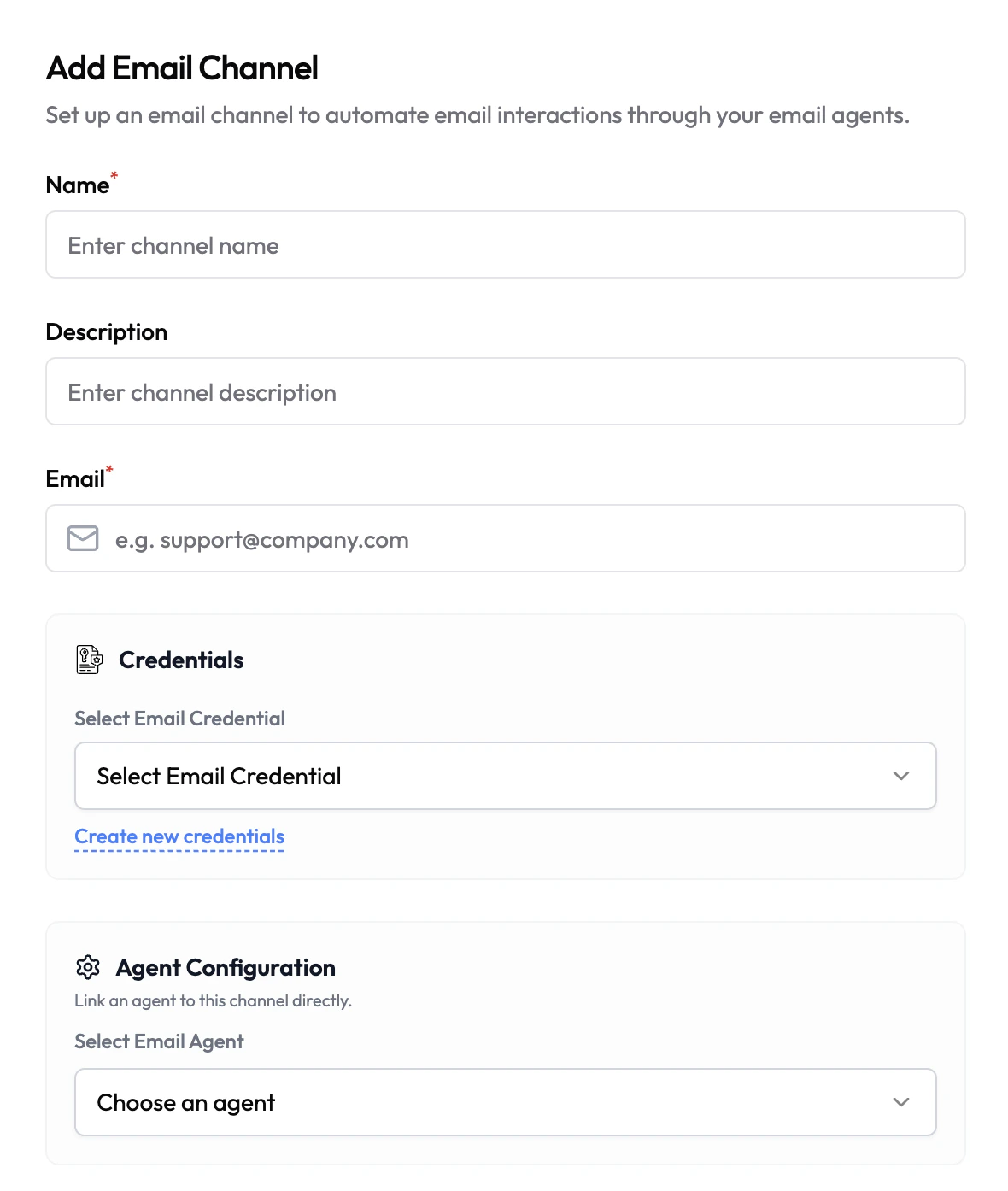 1. Navigate to **Channels** in the left sidebar.
2. Click **Add Channel** and select **Email**.
3. Fill in the channel details (see configuration below).
4. Select or create an **Email Credential**.
5. Under **Agent Configuration**, link an Email Agent.
6. Click **Save**.
Once saved, any email sent to the configured address will be processed by the linked Email Agent, which will compose and send a reply.
***
## Configuration
| Field | Type | Required | Description |
| ---------------- | -------- | -------- | --------------------------------------------------------------------------------------------------------------------------------------------- |
| Name | Text | Yes | A friendly name for this channel (e.g. `Support Inbox`). |
| Description | Text | No | Internal description for this channel. |
| Email | Text | Yes | The email address that will receive incoming emails and send replies (e.g. `support@company.com`). |
| Email Credential | Dropdown | Yes | Select a saved email (SMTP) credential to authorize sending from this address. Click **Create new credentials** to add one under Credentials. |
| Email Agent | Dropdown | No | The Email Agent that will handle incoming messages on this channel. |
***
## Credentials
Email channels require an **Email credential** containing your SMTP server details (host, port, username, password). This authorizes Subverse to send emails on behalf of your address. Credentials are stored encrypted and never exposed in plaintext after saving.
Create and manage your email credentials in the Credentials section
Make sure your email address is also configured to receive inbound mail (e.g. via MX records or your provider's inbound routing). Subverse handles the reply logic; your mail server handles delivery.
1. Navigate to **Channels** in the left sidebar.
2. Click **Add Channel** and select **Email**.
3. Fill in the channel details (see configuration below).
4. Select or create an **Email Credential**.
5. Under **Agent Configuration**, link an Email Agent.
6. Click **Save**.
Once saved, any email sent to the configured address will be processed by the linked Email Agent, which will compose and send a reply.
***
## Configuration
| Field | Type | Required | Description |
| ---------------- | -------- | -------- | --------------------------------------------------------------------------------------------------------------------------------------------- |
| Name | Text | Yes | A friendly name for this channel (e.g. `Support Inbox`). |
| Description | Text | No | Internal description for this channel. |
| Email | Text | Yes | The email address that will receive incoming emails and send replies (e.g. `support@company.com`). |
| Email Credential | Dropdown | Yes | Select a saved email (SMTP) credential to authorize sending from this address. Click **Create new credentials** to add one under Credentials. |
| Email Agent | Dropdown | No | The Email Agent that will handle incoming messages on this channel. |
***
## Credentials
Email channels require an **Email credential** containing your SMTP server details (host, port, username, password). This authorizes Subverse to send emails on behalf of your address. Credentials are stored encrypted and never exposed in plaintext after saving.
Create and manage your email credentials in the Credentials section
Make sure your email address is also configured to receive inbound mail (e.g. via MX records or your provider's inbound routing). Subverse handles the reply logic; your mail server handles delivery.