> ## Documentation Index
> Fetch the complete documentation index at: https://docs.subverseai.com/llms.txt
> Use this file to discover all available pages before exploring further.
# Communication Channels
> Connect your agents to the channels where your customers communicate
## Overview
Communication Channels are the bridges between your Subverse agents and the outside world. Each channel represents a specific communication medium — a phone number, a WhatsApp account, an email inbox, or a website chat endpoint — and is linked to an agent that handles all incoming interactions on that channel.
**How it works:**
1. Create a channel for the communication medium you want to support.
2. Attach credentials to authorize the channel (e.g. SIP credentials for voice, WhatsApp API keys, SMTP details for email).
3. Link an agent to the channel. All interactions arriving on that channel are routed to the linked agent automatically.
Credentials attached to channels are stored securely in encrypted form and are never exposed in plaintext after saving.
***
## Channel Types
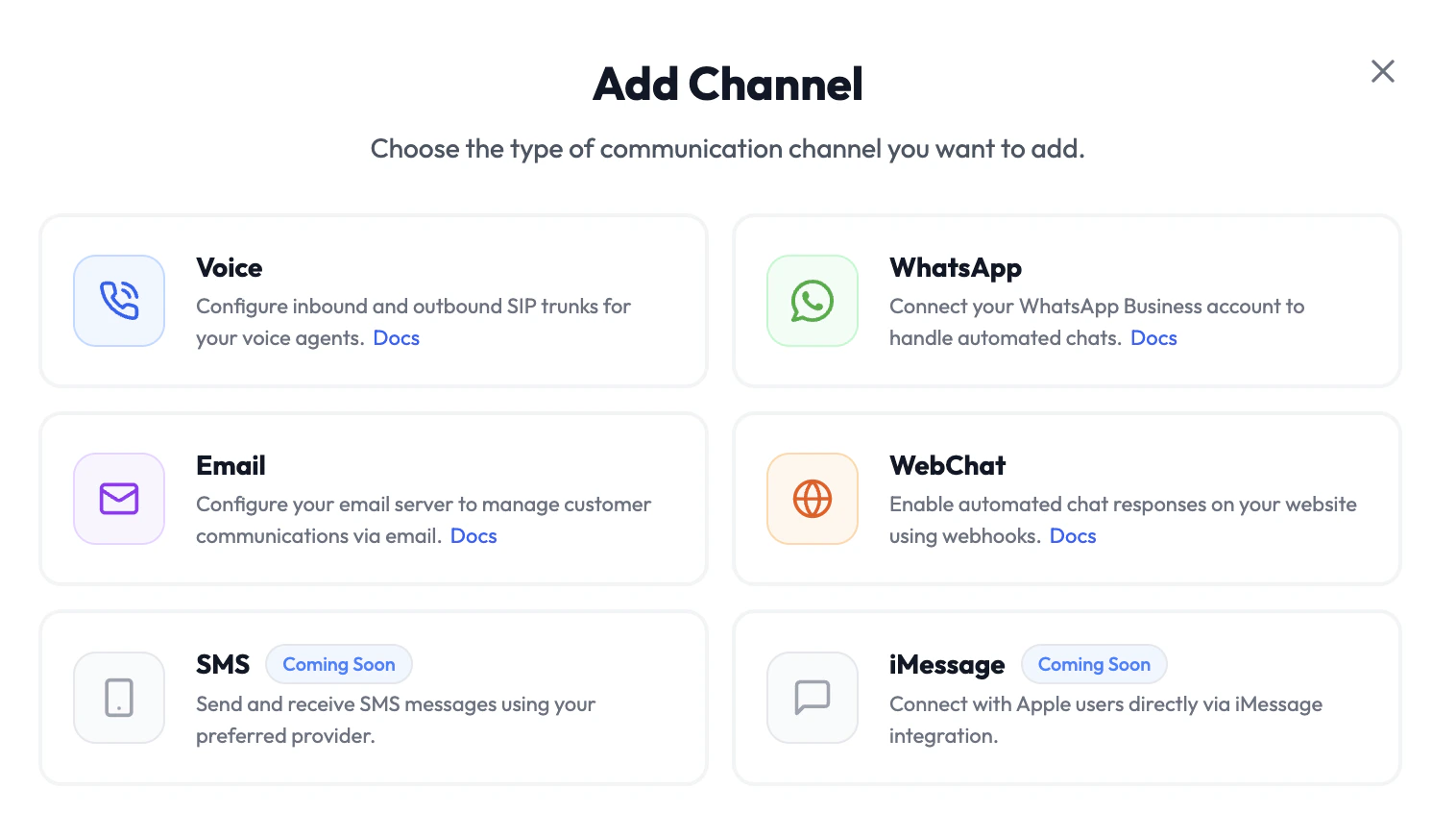 | Channel | Protocol | Compatible Agent | Use Case |
| -------------------------------------------- | ------------------------------ | ---------------- | -------------------------------------------------------- |
| [Voice](/communication-channels/voice) | SIP Trunk (Inbound / Outbound) | Voice Agent | Phone calls — inbound customer support, outbound dialing |
| [WhatsApp](/communication-channels/whatsapp) | WhatsApp Business API | Chat Agent | Automated messaging via WhatsApp |
| [Email](/communication-channels/email) | SMTP / Email | Email Agent | Auto-reply to incoming emails |
| [WebChat](/communication-channels/webchat) | Webhooks / API | Chat Agent | Embedded chat widget or API-driven chat on your website |
SMS and iMessage channels are coming soon.
***
## Adding a Channel
1. Navigate to **Channels** in the left sidebar.
2. Click **Add Channel**.
3. Select the channel type.
4. Fill in the channel details and attach credentials.
5. Link an agent under **Agent Configuration**.
6. Click **Save**.
Once saved, the channel is live and will route all incoming interactions to the linked agent.
| Channel | Protocol | Compatible Agent | Use Case |
| -------------------------------------------- | ------------------------------ | ---------------- | -------------------------------------------------------- |
| [Voice](/communication-channels/voice) | SIP Trunk (Inbound / Outbound) | Voice Agent | Phone calls — inbound customer support, outbound dialing |
| [WhatsApp](/communication-channels/whatsapp) | WhatsApp Business API | Chat Agent | Automated messaging via WhatsApp |
| [Email](/communication-channels/email) | SMTP / Email | Email Agent | Auto-reply to incoming emails |
| [WebChat](/communication-channels/webchat) | Webhooks / API | Chat Agent | Embedded chat widget or API-driven chat on your website |
SMS and iMessage channels are coming soon.
***
## Adding a Channel
1. Navigate to **Channels** in the left sidebar.
2. Click **Add Channel**.
3. Select the channel type.
4. Fill in the channel details and attach credentials.
5. Link an agent under **Agent Configuration**.
6. Click **Save**.
Once saved, the channel is live and will route all incoming interactions to the linked agent.