> ## Documentation Index
> Fetch the complete documentation index at: https://docs.subverseai.com/llms.txt
> Use this file to discover all available pages before exploring further.
# Voice Channel
> Connect inbound and outbound phone numbers to your Voice Agents via SIP trunks
## Overview
A Voice Channel connects your Voice Agent to real phone numbers using SIP trunks. Subverse gives you a unique **SIP URI** for your workspace — you configure your telephony provider to point calls to this URI, and Subverse routes them to the linked agent.
Voice channels support two trunk types:
* **Inbound SIP Trunk** — receives incoming calls and routes them to a Voice Agent
* **Outbound SIP Trunk** — provides a number the agent uses to make outgoing calls
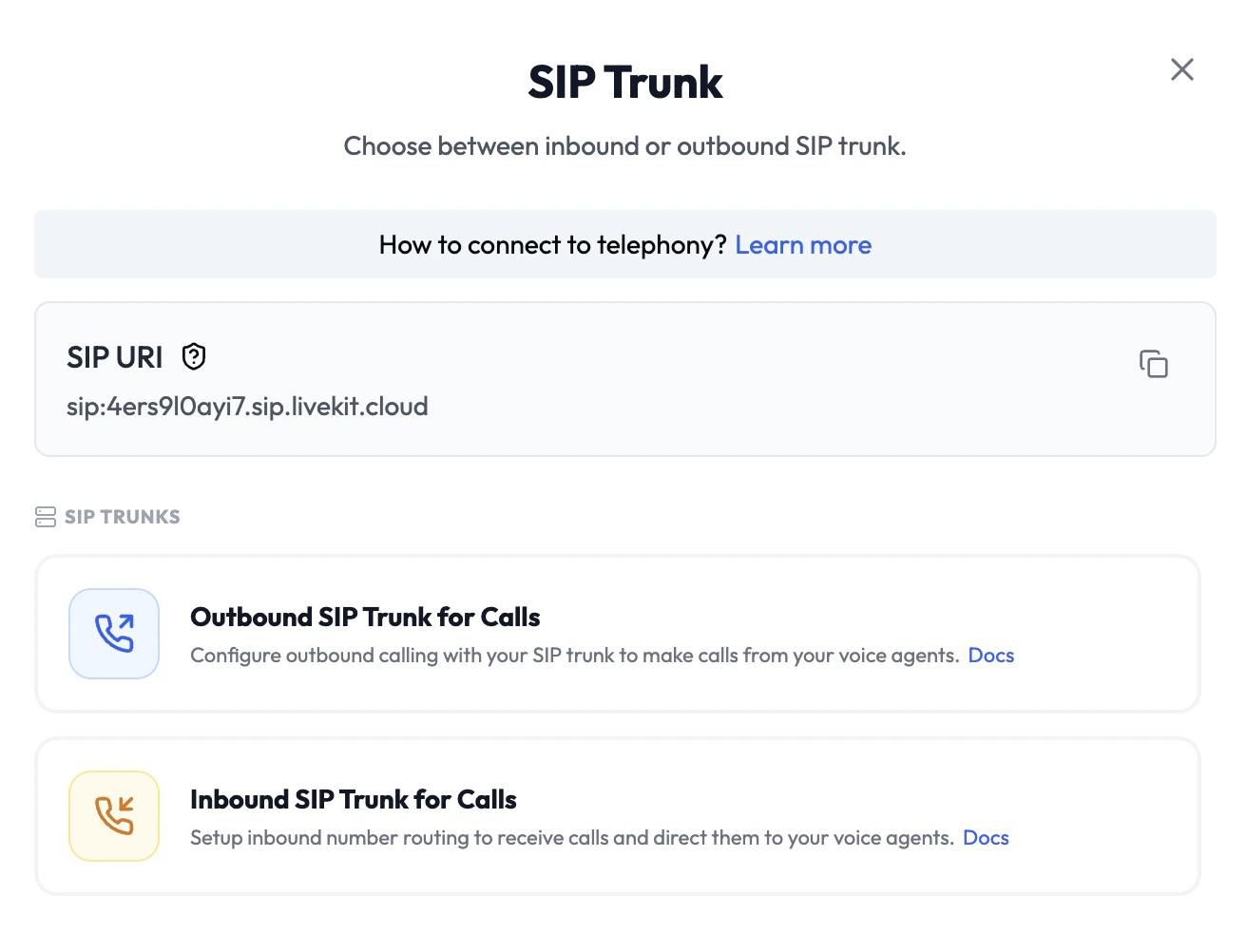 Your workspace **SIP URI** is shown at the top of the Voice Channel setup screen. Copy this and configure it as the destination in your telephony provider (Twilio, Telnyx, Plivo, etc.).
To use the live call transfer feature, you must configure an Outbound Trunk for the corresponding number and ensure outbound calling is enabled by your telephony provider.
***
## Inbound SIP Trunk
An inbound trunk assigns a phone number that customers can call. Incoming calls on this number are routed directly to the linked Voice Agent.
Your workspace **SIP URI** is shown at the top of the Voice Channel setup screen. Copy this and configure it as the destination in your telephony provider (Twilio, Telnyx, Plivo, etc.).
To use the live call transfer feature, you must configure an Outbound Trunk for the corresponding number and ensure outbound calling is enabled by your telephony provider.
***
## Inbound SIP Trunk
An inbound trunk assigns a phone number that customers can call. Incoming calls on this number are routed directly to the linked Voice Agent.
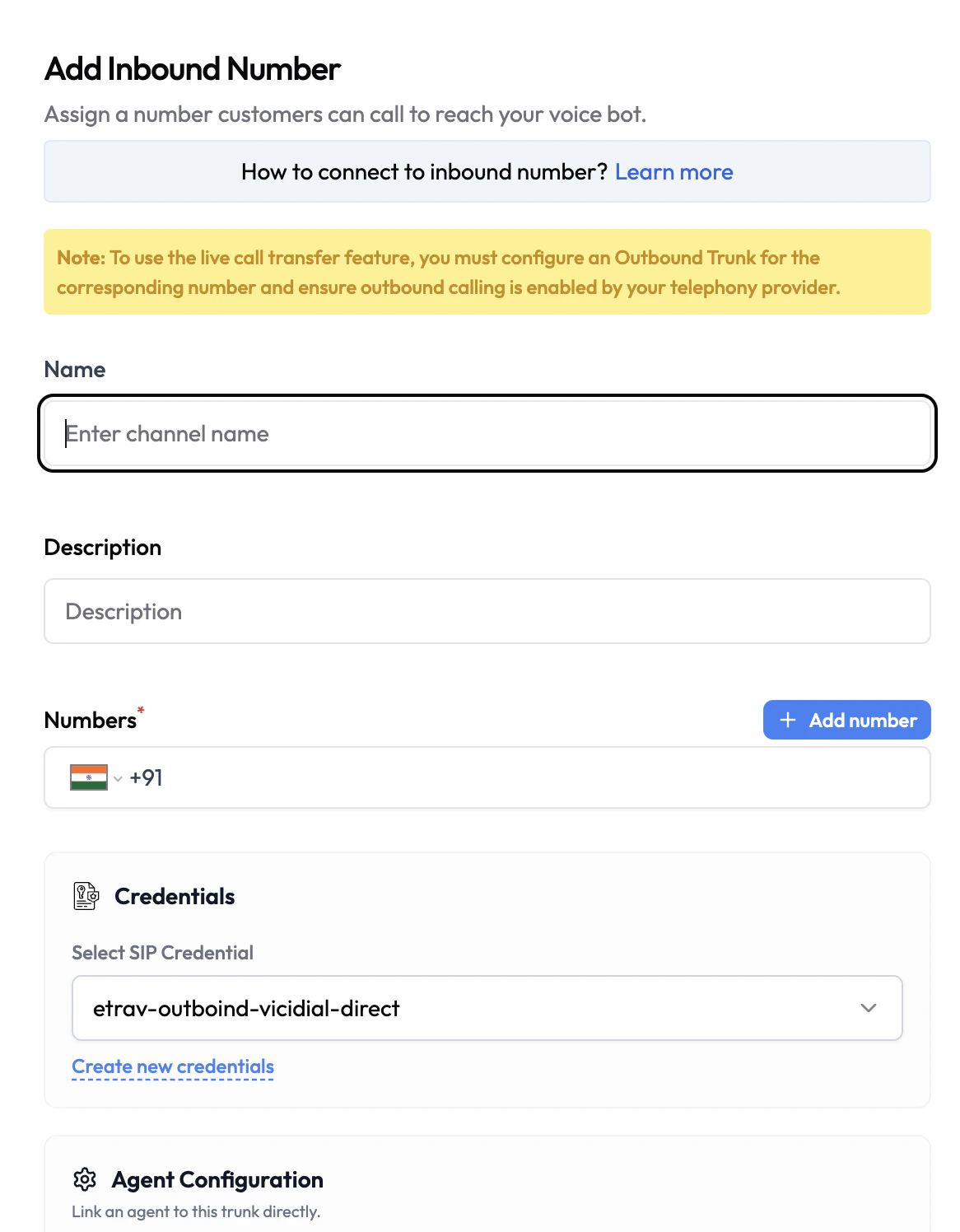 ### Configuration
| Field | Type | Required | Description |
| -------------- | ----------------- | -------- | ------------------------------------------------------------------------------------------------------------------------ |
| Name | Text | Yes | A friendly name for this inbound trunk (e.g. `Support Line`). |
| Description | Text | No | Internal description for this channel. |
| Numbers | Phone number list | Yes | One or more phone numbers that will receive inbound calls. Click **+ Add number** to add numbers with country code. |
| SIP Credential | Dropdown | Yes | Select a saved SIP credential to authenticate this trunk. Click **Create new credentials** to add one under Credentials. |
| Agent | Dropdown | No | The Voice Agent to handle calls on this trunk. Link directly here or configure it later. |
### How to Set Up
1. Navigate to **Channels** and click **Add Channel → Voice**.
2. Select **Inbound SIP Trunk for Calls**.
3. Enter a **Name** and optionally a **Description**.
4. Add the **phone number(s)** that will receive calls.
5. Select a **SIP Credential** (or create one).
6. Under **Agent Configuration**, select the Voice Agent to handle calls.
7. Click **Save**.
8. In your telephony provider, point the number's SIP destination to your workspace **SIP URI**.
***
## Outbound SIP Trunk
An outbound trunk provides a phone number the Voice Agent uses when placing outgoing calls — either for outbound campaigns or for the test call feature.
### Configuration
| Field | Type | Required | Description |
| -------------- | ----------------- | -------- | ------------------------------------------------------------------------------------------------------------------------ |
| Name | Text | Yes | A friendly name for this inbound trunk (e.g. `Support Line`). |
| Description | Text | No | Internal description for this channel. |
| Numbers | Phone number list | Yes | One or more phone numbers that will receive inbound calls. Click **+ Add number** to add numbers with country code. |
| SIP Credential | Dropdown | Yes | Select a saved SIP credential to authenticate this trunk. Click **Create new credentials** to add one under Credentials. |
| Agent | Dropdown | No | The Voice Agent to handle calls on this trunk. Link directly here or configure it later. |
### How to Set Up
1. Navigate to **Channels** and click **Add Channel → Voice**.
2. Select **Inbound SIP Trunk for Calls**.
3. Enter a **Name** and optionally a **Description**.
4. Add the **phone number(s)** that will receive calls.
5. Select a **SIP Credential** (or create one).
6. Under **Agent Configuration**, select the Voice Agent to handle calls.
7. Click **Save**.
8. In your telephony provider, point the number's SIP destination to your workspace **SIP URI**.
***
## Outbound SIP Trunk
An outbound trunk provides a phone number the Voice Agent uses when placing outgoing calls — either for outbound campaigns or for the test call feature.
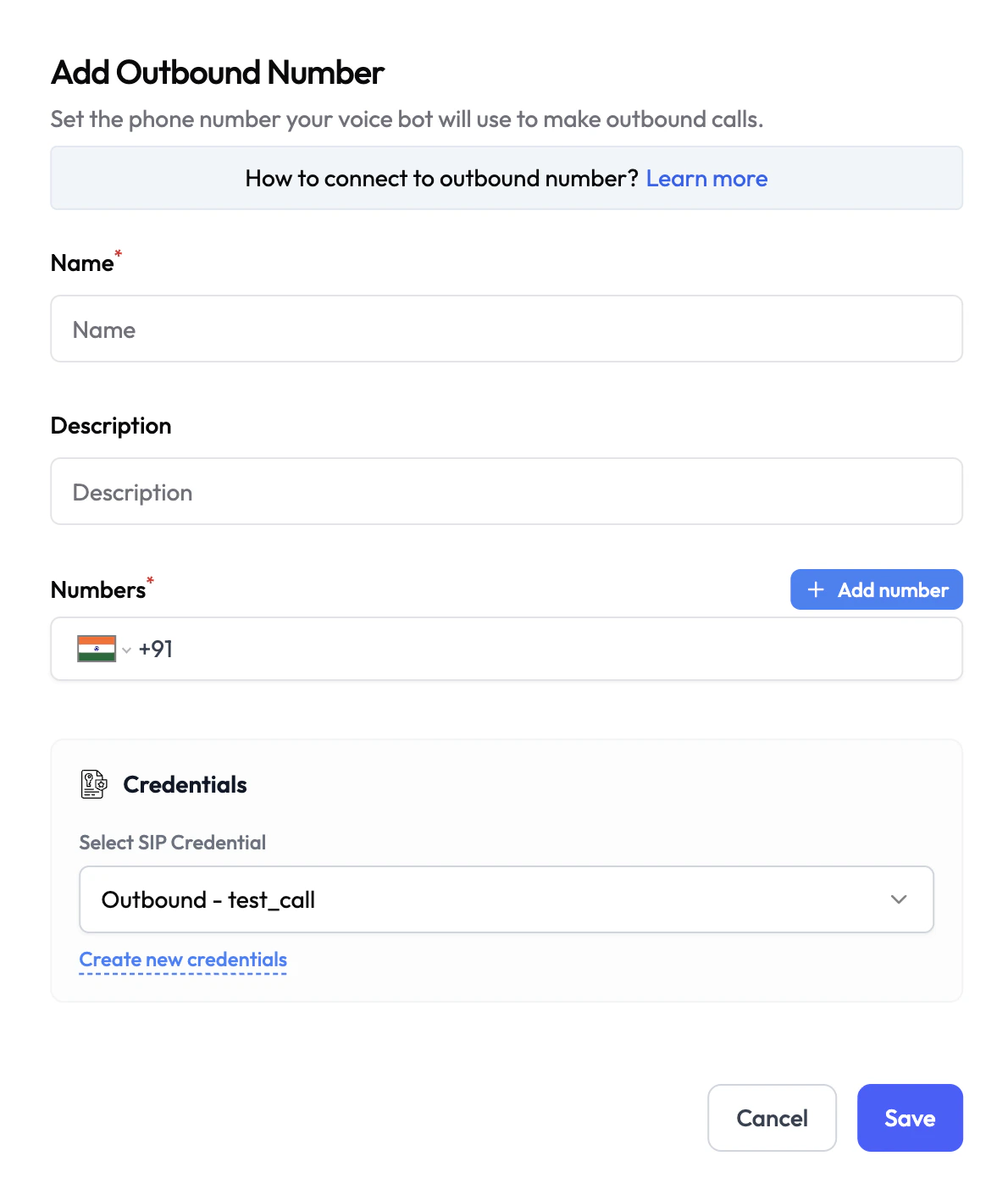 ### Configuration
| Field | Type | Required | Description |
| -------------- | ----------------- | -------- | ---------------------------------------------------------------------------------------------------------------------- |
| Name | Text | Yes | A friendly name for this outbound trunk (e.g. `Outbound Dialer`). |
| Description | Text | No | Internal description for this channel. |
| Numbers | Phone number list | Yes | The phone number(s) used as the caller ID for outbound calls. Click **+ Add number** to add numbers with country code. |
| SIP Credential | Dropdown | Yes | Select a saved SIP credential authorizing outbound calls. Click **Create new credentials** to add one. |
### How to Set Up
1. Navigate to **Channels** and click **Add Channel → Voice**.
2. Select **Outbound SIP Trunk for Calls**.
3. Enter a **Name** and optionally a **Description**.
4. Add the **phone number(s)** to use as the outbound caller ID.
5. Select a **SIP Credential** (or create one).
6. Click **Save**.
***
## Credentials
Voice channels use **SIP Credentials** to authenticate your SIP trunk. These are stored securely in encrypted form and never exposed in plaintext after saving.
Create and manage SIP credentials for your voice trunks
Overview of all credential types in Subverse
Need to set up a telephony provider? See the integration guides for [Twilio](/integrations/telephony-twilio), [Telnyx](/integrations/telephony-telnyx), and [Plivo](/integrations/telephony-plivo).
### Configuration
| Field | Type | Required | Description |
| -------------- | ----------------- | -------- | ---------------------------------------------------------------------------------------------------------------------- |
| Name | Text | Yes | A friendly name for this outbound trunk (e.g. `Outbound Dialer`). |
| Description | Text | No | Internal description for this channel. |
| Numbers | Phone number list | Yes | The phone number(s) used as the caller ID for outbound calls. Click **+ Add number** to add numbers with country code. |
| SIP Credential | Dropdown | Yes | Select a saved SIP credential authorizing outbound calls. Click **Create new credentials** to add one. |
### How to Set Up
1. Navigate to **Channels** and click **Add Channel → Voice**.
2. Select **Outbound SIP Trunk for Calls**.
3. Enter a **Name** and optionally a **Description**.
4. Add the **phone number(s)** to use as the outbound caller ID.
5. Select a **SIP Credential** (or create one).
6. Click **Save**.
***
## Credentials
Voice channels use **SIP Credentials** to authenticate your SIP trunk. These are stored securely in encrypted form and never exposed in plaintext after saving.
Create and manage SIP credentials for your voice trunks
Overview of all credential types in Subverse
Need to set up a telephony provider? See the integration guides for [Twilio](/integrations/telephony-twilio), [Telnyx](/integrations/telephony-telnyx), and [Plivo](/integrations/telephony-plivo).