> ## Documentation Index
> Fetch the complete documentation index at: https://docs.subverseai.com/llms.txt
> Use this file to discover all available pages before exploring further.
# WhatsApp Channel
> Connect your WhatsApp Business account to handle automated chats via a Chat Agent
## Overview
A WhatsApp Channel connects your WhatsApp Business number to a Chat Agent. When a customer messages your WhatsApp number, the linked agent receives the message and responds automatically — just like a human agent would.
WhatsApp channels use your WhatsApp Business API credentials to authorize sending and receiving messages. These credentials are stored securely in encrypted form.
**When to use a WhatsApp Channel:**
* You want to automate customer support or FAQs over WhatsApp
* You need a conversational agent available 24/7 on WhatsApp
* You want to qualify leads or handle bookings via WhatsApp messaging
***
## How to Set Up
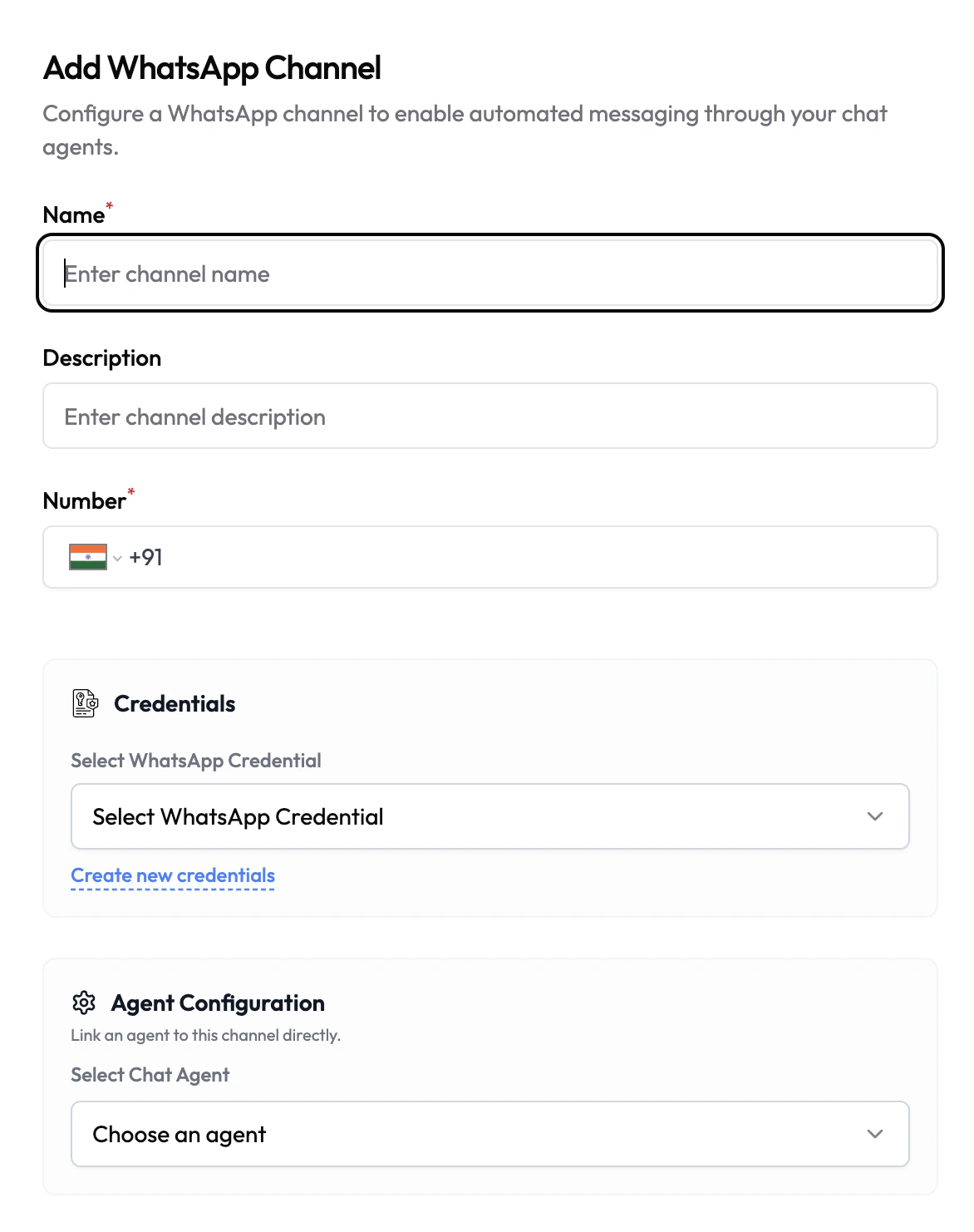 1. Navigate to **Channels** in the left sidebar.
2. Click **Add Channel** and select **WhatsApp**.
3. Fill in the channel details (see configuration below).
4. Select or create a **WhatsApp Credential**.
5. Under **Agent Configuration**, link a Chat Agent.
6. Click **Save**.
Once saved, messages sent to the configured WhatsApp number are routed to the linked Chat Agent.
***
## Configuration
| Field | Type | Required | Description |
| ------------------- | ------------ | -------- | ---------------------------------------------------------------------------------------------------------------------------- |
| Name | Text | Yes | A friendly name for this channel (e.g. `Support WhatsApp`). |
| Description | Text | No | Internal description for this channel. |
| Number | Phone number | Yes | The WhatsApp Business phone number that will receive messages (with country code). |
| WhatsApp Credential | Dropdown | Yes | Select a saved WhatsApp credential to authorize this channel. Click **Create new credentials** to add one under Credentials. |
| Chat Agent | Dropdown | No | The Chat Agent that will handle incoming WhatsApp messages. |
***
## Credentials
WhatsApp channels require a **WhatsApp API credential** containing your WhatsApp Business API token and configuration. Credentials are stored encrypted and never exposed in plaintext after saving.
Create and manage WhatsApp API credentials
Overview of all credential types in Subverse
1. Navigate to **Channels** in the left sidebar.
2. Click **Add Channel** and select **WhatsApp**.
3. Fill in the channel details (see configuration below).
4. Select or create a **WhatsApp Credential**.
5. Under **Agent Configuration**, link a Chat Agent.
6. Click **Save**.
Once saved, messages sent to the configured WhatsApp number are routed to the linked Chat Agent.
***
## Configuration
| Field | Type | Required | Description |
| ------------------- | ------------ | -------- | ---------------------------------------------------------------------------------------------------------------------------- |
| Name | Text | Yes | A friendly name for this channel (e.g. `Support WhatsApp`). |
| Description | Text | No | Internal description for this channel. |
| Number | Phone number | Yes | The WhatsApp Business phone number that will receive messages (with country code). |
| WhatsApp Credential | Dropdown | Yes | Select a saved WhatsApp credential to authorize this channel. Click **Create new credentials** to add one under Credentials. |
| Chat Agent | Dropdown | No | The Chat Agent that will handle incoming WhatsApp messages. |
***
## Credentials
WhatsApp channels require a **WhatsApp API credential** containing your WhatsApp Business API token and configuration. Credentials are stored encrypted and never exposed in plaintext after saving.
Create and manage WhatsApp API credentials
Overview of all credential types in Subverse