> ## Documentation Index
> Fetch the complete documentation index at: https://docs.subverseai.com/llms.txt
> Use this file to discover all available pages before exploring further.
# Google Sheets API Key Credentials
> How to create and configure Google Sheets API Key credentials for SubverseAI
# Google Sheets API Key Credentials
Google Sheets API Key credentials allow your SubverseAI agents to read data from **public** Google Sheets without requiring user authentication.
## Overview
Google Sheets API Key credentials provide access to:
* Reading data from public spreadsheets
* Fetching sheet metadata and values
* Accessing publicly shared sheet ranges
**API Key only works for public sheets.** It does not support private sheets or any write operations (append, update, delete). For private sheets or write access, use the [Google Sheets Service Account](/credentials/types/google-sheets-service-account) credential type instead.
## Dashboard Screenshot
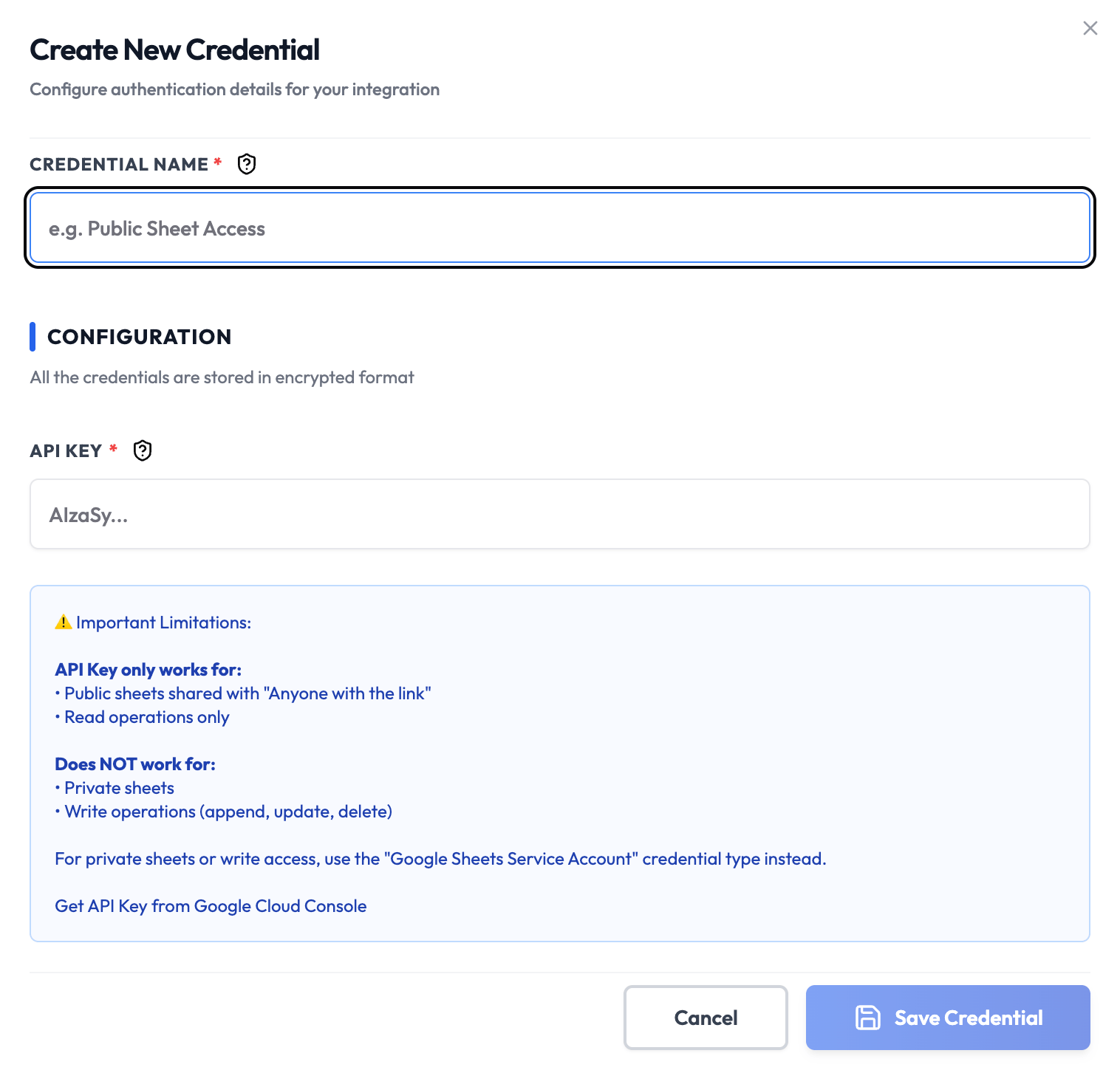 *Create API keys in the [Google Cloud Console](https://console.cloud.google.com/apis/credentials)*
## Steps to Create Google Sheets API Key Credentials
### 1. Set Up a Google Cloud Project
1. Visit the [Google Cloud Console](https://console.cloud.google.com)
2. Sign in with your Google account
3. Create a new project or select an existing one
### 2. Enable the Google Sheets API
1. Navigate to **APIs & Services** > **Library**
2. Search for **Google Sheets API**
3. Click **Enable**
### 3. Create an API Key
1. Go to **APIs & Services** > [Credentials](https://console.cloud.google.com/apis/credentials)
2. Click **Create Credentials** > **API key**
3. Copy the generated API key (starts with `AIzaSy...`)
4. Optionally, click **Restrict Key** to limit it to the Sheets API only
### 4. Make Your Sheet Public
1. Open the Google Sheet you want to access
2. Click **Share** (top-right)
3. Change access to **Anyone with the link** > **Viewer**
4. Copy the **Spreadsheet ID** from the URL:
* URL format: `https://docs.google.com/spreadsheets/d//edit`
### 5. Add to SubverseAI
1. Go to **Credentials** in your SubverseAI dashboard
2. Click **Create New Credential**
3. Select **Google Sheets API Key** from the credential types
4. Enter a name for your credential (e.g., "Public Sheet Access")
5. Fill in the required fields:
* **API Key**: Your Google API key
6. Click **Save Credential**
## Required Fields
* **Name**: A descriptive name for your credential
* **API Key**: Your Google API key from Google Cloud Console
## Usage Tips
* Restrict your API key to the Sheets API to reduce exposure risk
* Only use this credential type for non-sensitive, public data
* For any write operations or private sheets, switch to the Service Account credential
## Troubleshooting
**403 Forbidden**: The sheet is not public — change sharing settings to "Anyone with the link"
**API Key Invalid**: Verify you copied the full key including the `AIzaSy` prefix
**API Not Enabled**: Ensure the Google Sheets API is enabled in your Cloud project
**Quota Exceeded**: Google Sheets API has per-day request quotas — check your usage in the Cloud Console
## Next Steps
After creating your Google Sheets API Key credentials:
* Read data from public spreadsheets in workflows
* Build data dashboards and reporting automations
* For private sheets, configure [Google Sheets Service Account](/credentials/types/google-sheets-service-account) credentials
*Create API keys in the [Google Cloud Console](https://console.cloud.google.com/apis/credentials)*
## Steps to Create Google Sheets API Key Credentials
### 1. Set Up a Google Cloud Project
1. Visit the [Google Cloud Console](https://console.cloud.google.com)
2. Sign in with your Google account
3. Create a new project or select an existing one
### 2. Enable the Google Sheets API
1. Navigate to **APIs & Services** > **Library**
2. Search for **Google Sheets API**
3. Click **Enable**
### 3. Create an API Key
1. Go to **APIs & Services** > [Credentials](https://console.cloud.google.com/apis/credentials)
2. Click **Create Credentials** > **API key**
3. Copy the generated API key (starts with `AIzaSy...`)
4. Optionally, click **Restrict Key** to limit it to the Sheets API only
### 4. Make Your Sheet Public
1. Open the Google Sheet you want to access
2. Click **Share** (top-right)
3. Change access to **Anyone with the link** > **Viewer**
4. Copy the **Spreadsheet ID** from the URL:
* URL format: `https://docs.google.com/spreadsheets/d//edit`
### 5. Add to SubverseAI
1. Go to **Credentials** in your SubverseAI dashboard
2. Click **Create New Credential**
3. Select **Google Sheets API Key** from the credential types
4. Enter a name for your credential (e.g., "Public Sheet Access")
5. Fill in the required fields:
* **API Key**: Your Google API key
6. Click **Save Credential**
## Required Fields
* **Name**: A descriptive name for your credential
* **API Key**: Your Google API key from Google Cloud Console
## Usage Tips
* Restrict your API key to the Sheets API to reduce exposure risk
* Only use this credential type for non-sensitive, public data
* For any write operations or private sheets, switch to the Service Account credential
## Troubleshooting
**403 Forbidden**: The sheet is not public — change sharing settings to "Anyone with the link"
**API Key Invalid**: Verify you copied the full key including the `AIzaSy` prefix
**API Not Enabled**: Ensure the Google Sheets API is enabled in your Cloud project
**Quota Exceeded**: Google Sheets API has per-day request quotas — check your usage in the Cloud Console
## Next Steps
After creating your Google Sheets API Key credentials:
* Read data from public spreadsheets in workflows
* Build data dashboards and reporting automations
* For private sheets, configure [Google Sheets Service Account](/credentials/types/google-sheets-service-account) credentials