> ## Documentation Index
> Fetch the complete documentation index at: https://docs.subverseai.com/llms.txt
> Use this file to discover all available pages before exploring further.
# Shopify Access Token API Credentials
> How to create and configure Shopify Access Token API credentials for SubverseAI
# Shopify Access Token API Credentials
Shopify Access Token API credentials allow your SubverseAI agents to authenticate with Shopify stores using pre-generated access tokens for direct API access.
## Overview
Shopify Access Token credentials provide access to:
* Direct API access with access tokens
* Private app integration
* Custom app development
* Simplified authentication flow
* High-frequency API operations
## Video Tutorial
## Dashboard Screenshot
*Generate access tokens in your [Shopify Admin](https://www.shopify.com/admin)*
## Steps to Create Shopify Access Token API Credentials
### 1. Create Private App
1. Log in to your [Shopify Admin](https://www.shopify.com/admin)
2. Navigate to **Settings** > **Apps**
3. Click **Develop apps**
4. Click **Create a legacy custom app**
5. Enter app name (e.g., "SubverseAI Token Access")
6. Select the app developer
7. Click **Create app**
### 2. Configure Admin API Integration
1. Go to the **Configuration** tab
2. In Admin API integration, Click **Configure**
3. Select the required Admin API access scopes:
* `read_products`, `write_products` for product management
* `read_orders`, `write_orders` for order processing
* Additional scopes as needed
4. Click **Save**
### 3. Install App and Generate Token
1. Click **Install app**
2. Confirm the installation
3. Go to the **API credentials** tab
4. Copy the **Admin API access token** \[Will be generated after app installation and visible only once]
5. Note the **API key** and **API secret key**
### 4. Add to SubverseAI
1. Go to **Credentials** in your SubverseAI dashboard
2. Click **Create New Credential**
3. Select **Shopify Access Token API** from the credential types
4. Enter a name for your credential
5. Fill in the required fields:
* **Store URL**: Your Shopify store sub domain
* **Access Token**: Your Admin API access token
* **API Key**: Your app API key
6. Click **Save Credential**
## Required Fields
* **Name**: A descriptive name for your credential
* **Store URL**: Your Shopify store sub domain (e.g., `your-store` from `your-store.myshopify.com`)
* **Access Token**: Your Admin API access token
* **API Key**: Your app API key
## Usage Tips
* Use access tokens for high-frequency operations
* Store tokens securely and rotate regularly
* Monitor API usage to avoid rate limits
* Use separate tokens for different environments
## Troubleshooting
**Invalid Access Token**: Regenerate the token from the app settings
**Store Not Found**: Verify the store URL is correct
**Permission Denied**: Check that the app has required Admin API scopes
**Rate Limit Exceeded**: Monitor API usage and implement rate limiting
## Next Steps
After creating your Shopify Access Token credentials:
* Set up direct API integration workflows
* Configure high-frequency operations
* Build real-time data synchronization
* Monitor API usage and performance
* Implement token rotation procedures
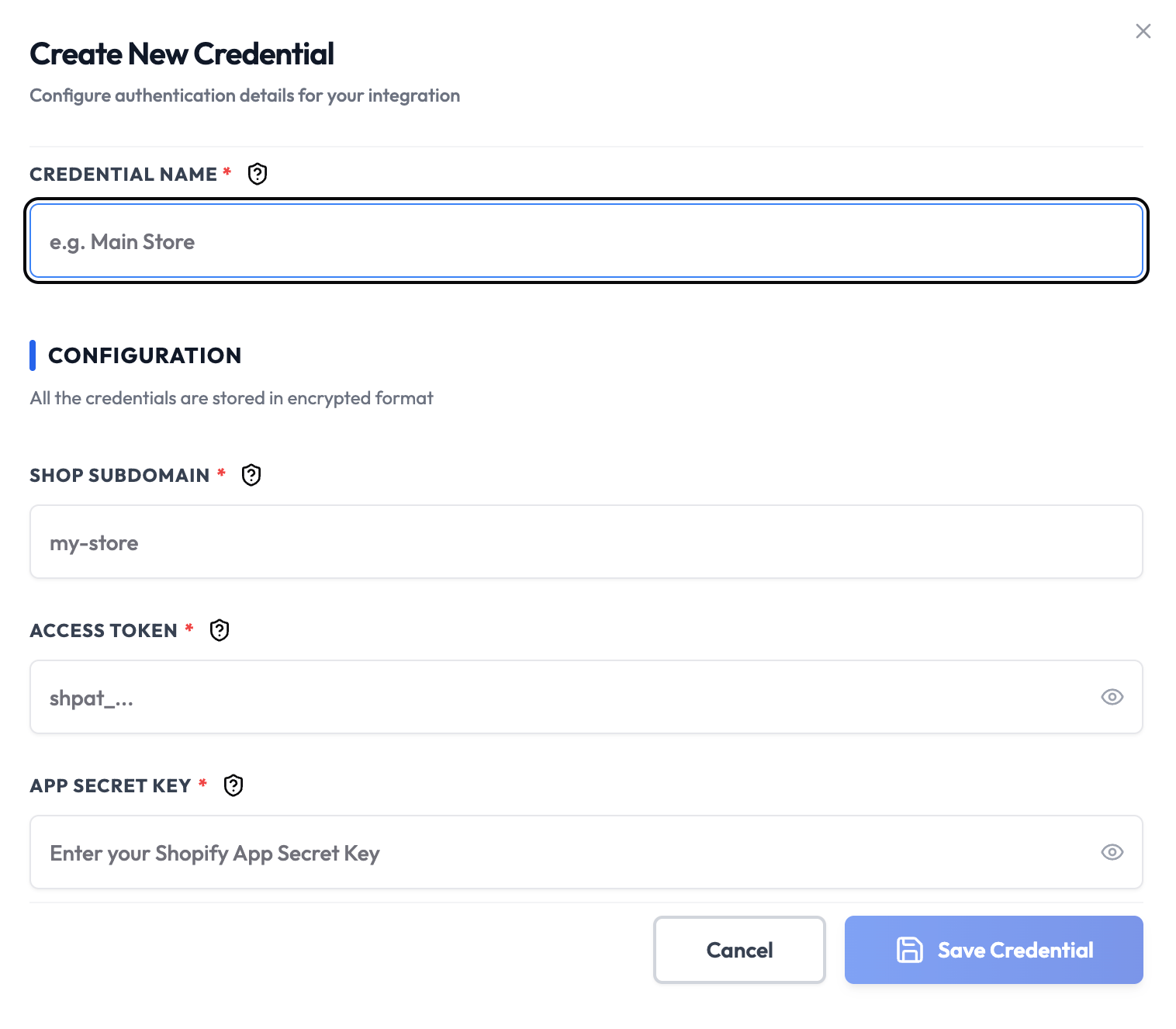 *Generate access tokens in your [Shopify Admin](https://www.shopify.com/admin)*
## Steps to Create Shopify Access Token API Credentials
### 1. Create Private App
1. Log in to your [Shopify Admin](https://www.shopify.com/admin)
2. Navigate to **Settings** > **Apps**
3. Click **Develop apps**
4. Click **Create a legacy custom app**
5. Enter app name (e.g., "SubverseAI Token Access")
6. Select the app developer
7. Click **Create app**
### 2. Configure Admin API Integration
1. Go to the **Configuration** tab
2. In Admin API integration, Click **Configure**
3. Select the required Admin API access scopes:
* `read_products`, `write_products` for product management
* `read_orders`, `write_orders` for order processing
* Additional scopes as needed
4. Click **Save**
### 3. Install App and Generate Token
1. Click **Install app**
2. Confirm the installation
3. Go to the **API credentials** tab
4. Copy the **Admin API access token** \[Will be generated after app installation and visible only once]
5. Note the **API key** and **API secret key**
### 4. Add to SubverseAI
1. Go to **Credentials** in your SubverseAI dashboard
2. Click **Create New Credential**
3. Select **Shopify Access Token API** from the credential types
4. Enter a name for your credential
5. Fill in the required fields:
* **Store URL**: Your Shopify store sub domain
* **Access Token**: Your Admin API access token
* **API Key**: Your app API key
6. Click **Save Credential**
## Required Fields
* **Name**: A descriptive name for your credential
* **Store URL**: Your Shopify store sub domain (e.g., `your-store` from `your-store.myshopify.com`)
* **Access Token**: Your Admin API access token
* **API Key**: Your app API key
## Usage Tips
* Use access tokens for high-frequency operations
* Store tokens securely and rotate regularly
* Monitor API usage to avoid rate limits
* Use separate tokens for different environments
## Troubleshooting
**Invalid Access Token**: Regenerate the token from the app settings
**Store Not Found**: Verify the store URL is correct
**Permission Denied**: Check that the app has required Admin API scopes
**Rate Limit Exceeded**: Monitor API usage and implement rate limiting
## Next Steps
After creating your Shopify Access Token credentials:
* Set up direct API integration workflows
* Configure high-frequency operations
* Build real-time data synchronization
* Monitor API usage and performance
* Implement token rotation procedures
*Generate access tokens in your [Shopify Admin](https://www.shopify.com/admin)*
## Steps to Create Shopify Access Token API Credentials
### 1. Create Private App
1. Log in to your [Shopify Admin](https://www.shopify.com/admin)
2. Navigate to **Settings** > **Apps**
3. Click **Develop apps**
4. Click **Create a legacy custom app**
5. Enter app name (e.g., "SubverseAI Token Access")
6. Select the app developer
7. Click **Create app**
### 2. Configure Admin API Integration
1. Go to the **Configuration** tab
2. In Admin API integration, Click **Configure**
3. Select the required Admin API access scopes:
* `read_products`, `write_products` for product management
* `read_orders`, `write_orders` for order processing
* Additional scopes as needed
4. Click **Save**
### 3. Install App and Generate Token
1. Click **Install app**
2. Confirm the installation
3. Go to the **API credentials** tab
4. Copy the **Admin API access token** \[Will be generated after app installation and visible only once]
5. Note the **API key** and **API secret key**
### 4. Add to SubverseAI
1. Go to **Credentials** in your SubverseAI dashboard
2. Click **Create New Credential**
3. Select **Shopify Access Token API** from the credential types
4. Enter a name for your credential
5. Fill in the required fields:
* **Store URL**: Your Shopify store sub domain
* **Access Token**: Your Admin API access token
* **API Key**: Your app API key
6. Click **Save Credential**
## Required Fields
* **Name**: A descriptive name for your credential
* **Store URL**: Your Shopify store sub domain (e.g., `your-store` from `your-store.myshopify.com`)
* **Access Token**: Your Admin API access token
* **API Key**: Your app API key
## Usage Tips
* Use access tokens for high-frequency operations
* Store tokens securely and rotate regularly
* Monitor API usage to avoid rate limits
* Use separate tokens for different environments
## Troubleshooting
**Invalid Access Token**: Regenerate the token from the app settings
**Store Not Found**: Verify the store URL is correct
**Permission Denied**: Check that the app has required Admin API scopes
**Rate Limit Exceeded**: Monitor API usage and implement rate limiting
## Next Steps
After creating your Shopify Access Token credentials:
* Set up direct API integration workflows
* Configure high-frequency operations
* Build real-time data synchronization
* Monitor API usage and performance
* Implement token rotation procedures