> ## Documentation Index
> Fetch the complete documentation index at: https://docs.subverseai.com/llms.txt
> Use this file to discover all available pages before exploring further.
# Getting Started
> Learn how to access and navigate the SubVerse AI platform
## Accessing the Platform
SubVerse AI provides a comprehensive web-based dashboard for managing all aspects of your AI agents and workflows. Access the platform at [dashboard.subverseai.com](https://dashboard.subverseai.com).
## Creating Your Account
### Sign Up Process
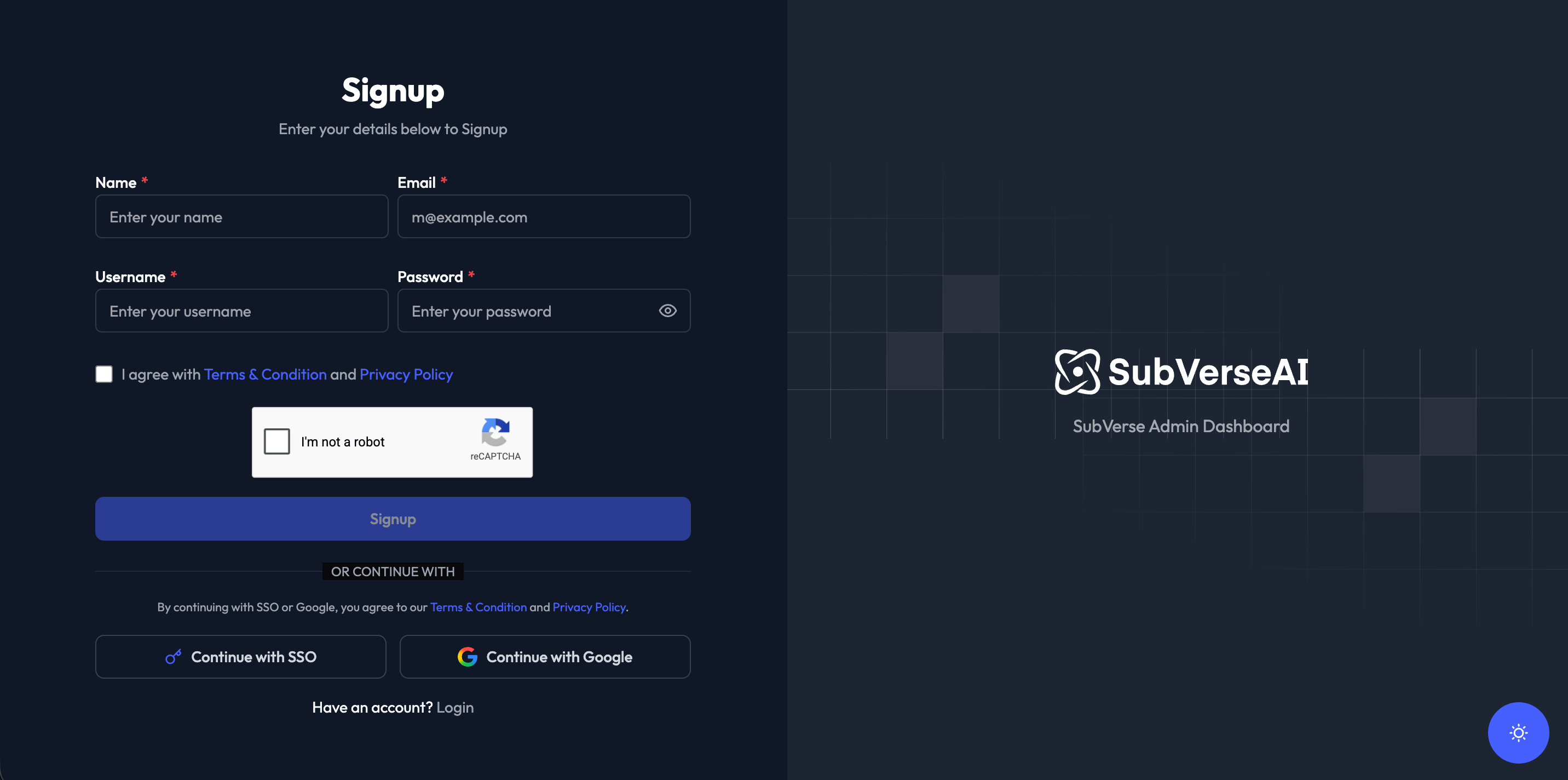 1. Navigate to the SubVerse dashboard
2. Click on **Sign Up** if you're a new user
3. Fill in the required information:
* **Name**: Your full name
* **Email**: Business email address
* **Username**: Choose a unique username
* **Phone**: Contact number with country code
* **Password**: Create a secure password
* **Country**: Select your country
4. Accept the Terms & Conditions and Privacy Policy
5. Click **Signup** to create your account
You'll receive a verification email to confirm your account. Make sure to check your spam folder if you don't see it in your inbox.
### Logging In
1. Navigate to the SubVerse dashboard
2. Click on **Sign Up** if you're a new user
3. Fill in the required information:
* **Name**: Your full name
* **Email**: Business email address
* **Username**: Choose a unique username
* **Phone**: Contact number with country code
* **Password**: Create a secure password
* **Country**: Select your country
4. Accept the Terms & Conditions and Privacy Policy
5. Click **Signup** to create your account
You'll receive a verification email to confirm your account. Make sure to check your spam folder if you don't see it in your inbox.
### Logging In
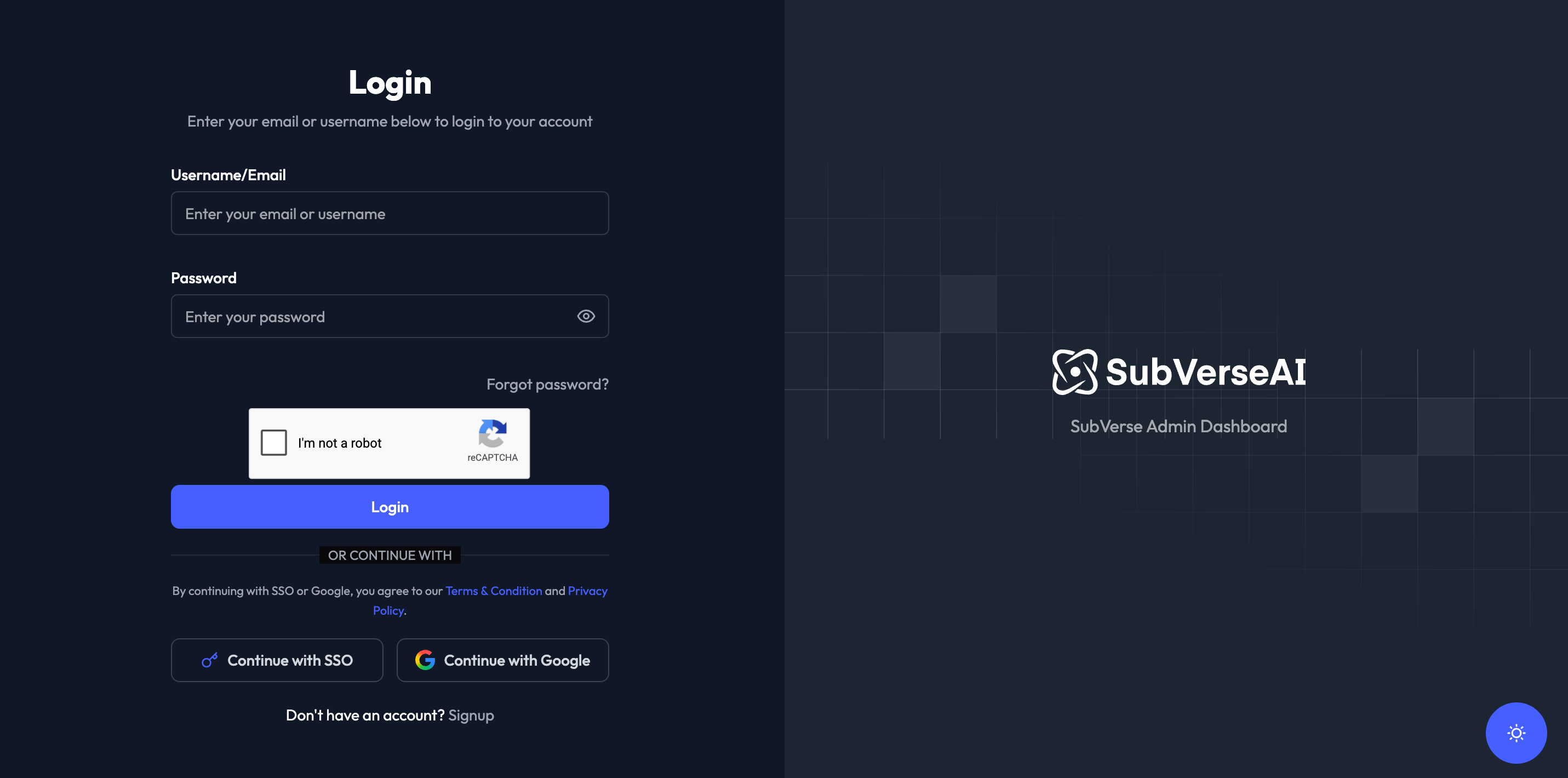 For existing users:
1. Go to [dashboard.subverseai.com](https://dashboard.subverseai.com)
2. Enter your **Username/Email**
3. Enter your **Password**
4. Click **Login** to access your dashboard
If you've forgotten your password, click on **Forgot password?** to reset it.
## Dashboard Overview
For existing users:
1. Go to [dashboard.subverseai.com](https://dashboard.subverseai.com)
2. Enter your **Username/Email**
3. Enter your **Password**
4. Click **Login** to access your dashboard
If you've forgotten your password, click on **Forgot password?** to reset it.
## Dashboard Overview
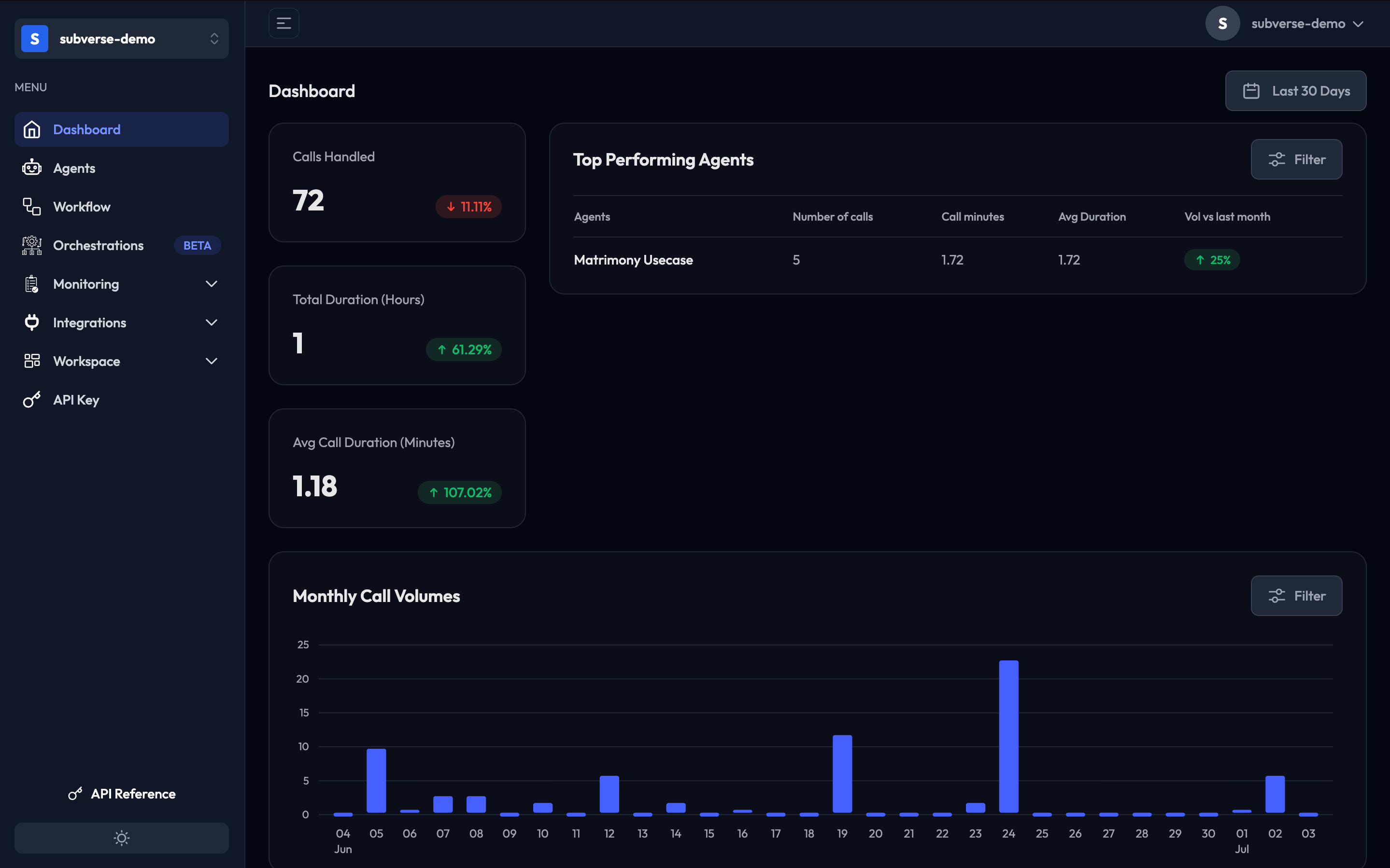 Once logged in, you'll see the main dashboard with key metrics and navigation options.
### Navigation Menu
The left sidebar provides access to all platform features:
**Main Sections:**
* **Dashboard**: Overview of your platform metrics and performance
* **Agents**: Manage your conversational AI agents
* **Call History**: View and analyze all call records
* **Workflow**: Build and manage automated workflows
* **Reports**: Access detailed analytics and reports
* **Integrations**: Configure external integrations
* **API Key**: Manage API keys for programmatic access
**Additional Resources:**
* **API Reference**: Documentation for REST APIs
## Quick Actions
From the dashboard, you can quickly:
1. **Create a New Agent**: Click **+ Add Voice Agent** to start building
2. **View Call History**: Monitor recent interactions
3. **Check Performance**: Review metrics and KPIs
4. **Access Integrations**: Configure telephony and tools
5. **Generate Reports**: Export data for analysis
## Dashboard Features
### Real-Time Updates
The dashboard updates in real-time, showing:
* Active calls in progress
* Recent call completions
* Agent status changes
* System notifications
### Filtering and Search
Use the filter options to:
* View specific time periods (Last 30 Days, custom ranges)
* Filter by agent type
* Search for specific calls or agents
* Export filtered data
### Responsive Design
The dashboard is fully responsive and works on:
* Desktop computers
* Tablets
* Mobile devices (limited functionality)
## Next Steps
Now that you're familiar with the dashboard, you can:
Learn how to build and configure AI agents
Track and analyze call performance
Connect telephony and external systems
Automate business processes
## Support and Help
If you need assistance:
* **Documentation**: Browse our comprehensive guides
* **Support**: Contact us at [support@subverseai.com](mailto:support@subverseai.com)
* **Community**: Join our user community for tips and best practices
Keep your login credentials secure and never share your API keys. Enable two-factor authentication for enhanced security.
Once logged in, you'll see the main dashboard with key metrics and navigation options.
### Navigation Menu
The left sidebar provides access to all platform features:
**Main Sections:**
* **Dashboard**: Overview of your platform metrics and performance
* **Agents**: Manage your conversational AI agents
* **Call History**: View and analyze all call records
* **Workflow**: Build and manage automated workflows
* **Reports**: Access detailed analytics and reports
* **Integrations**: Configure external integrations
* **API Key**: Manage API keys for programmatic access
**Additional Resources:**
* **API Reference**: Documentation for REST APIs
## Quick Actions
From the dashboard, you can quickly:
1. **Create a New Agent**: Click **+ Add Voice Agent** to start building
2. **View Call History**: Monitor recent interactions
3. **Check Performance**: Review metrics and KPIs
4. **Access Integrations**: Configure telephony and tools
5. **Generate Reports**: Export data for analysis
## Dashboard Features
### Real-Time Updates
The dashboard updates in real-time, showing:
* Active calls in progress
* Recent call completions
* Agent status changes
* System notifications
### Filtering and Search
Use the filter options to:
* View specific time periods (Last 30 Days, custom ranges)
* Filter by agent type
* Search for specific calls or agents
* Export filtered data
### Responsive Design
The dashboard is fully responsive and works on:
* Desktop computers
* Tablets
* Mobile devices (limited functionality)
## Next Steps
Now that you're familiar with the dashboard, you can:
Learn how to build and configure AI agents
Track and analyze call performance
Connect telephony and external systems
Automate business processes
## Support and Help
If you need assistance:
* **Documentation**: Browse our comprehensive guides
* **Support**: Contact us at [support@subverseai.com](mailto:support@subverseai.com)
* **Community**: Join our user community for tips and best practices
Keep your login credentials secure and never share your API keys. Enable two-factor authentication for enhanced security.