> ## Documentation Index
> Fetch the complete documentation index at: https://docs.subverseai.com/llms.txt
> Use this file to discover all available pages before exploring further.
# Send Email
> Send automated emails through any SMTP server from an orchestration
# Send Email
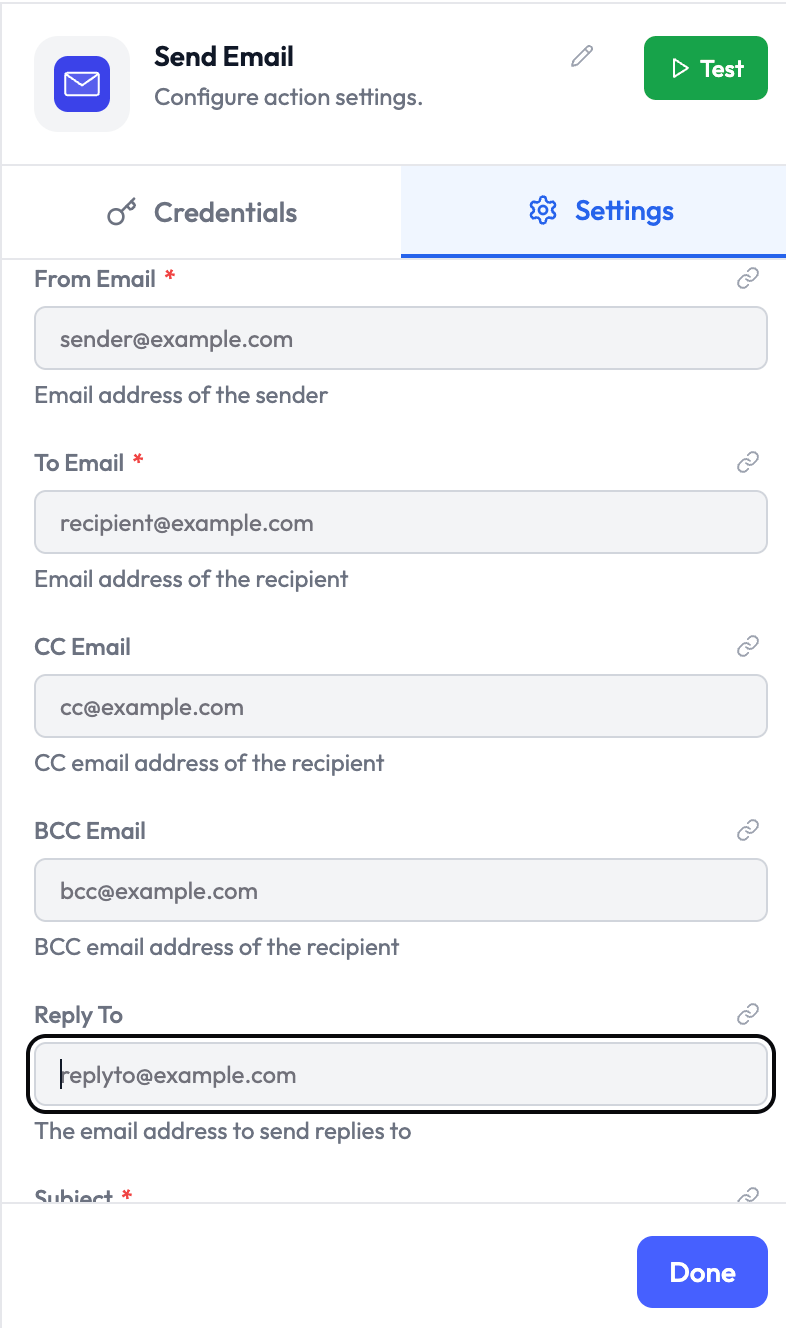
The **Send Email** node sends emails through an SMTP server. Use it for transactional messages, alerts, reports, and follow-ups inside an orchestration.
 ***
## Credentials
This node requires an **[Email (SMTP / IMAP)](/integrations/email)** credential.
To create a credential:
1. Go to **Integrations → Email** and select **New connection**
2. Select **Email (SMTP / IMAP)**
3. Enter your SMTP username, password, host, port, and encryption
***
## Use Cases
* **Order Confirmations**: Email receipts and invoices after a purchase
* **Appointment Reminders**: Send appointment details to customers
* **Status Alerts**: Notify internal teams or customers when events occur
* **Reports**: Email generated summaries or documents
* **Follow-ups**: Send post-call or post-chat summaries
***
## Parameters
| Parameter | Type | Required | Description |
| - | - | - | - |
| **Credential** | Credential | Yes | Select an [Email (SMTP / IMAP)](/integrations/email) credential |
| **From Email** | String | No | Sender address in `sender@example.com` or `Name ` format. Defaults to the credential username when omitted |
| **To Email** | String | Yes | Recipient email address |
| **CC Email** | String | No | CC recipient address |
| **BCC Email** | String | No | BCC recipient address |
| **Reply To** | String | No | Reply-To address |
| **Subject** | String | Yes | Email subject line |
| **Email Format** | Select | Yes | `HTML`, `Text`, or `Both` (default: `HTML`) |
| **Text** | String | No | Plain text body. Shown when Email Format is `Text` or `Both` |
| **HTML** | String | No | HTML body. Shown when Email Format is `HTML` or `Both`. Supports the built-in HTML editor |
| **Attachments** | Collection | No | Files to attach by public link or direct upload. Each attachment requires a file URL; the file name is optional |
| **Ignore SSL Issues (Insecure)** | Boolean | No | Bypass SSL certificate validation (default: disabled) |
| **Append Attribution** | Boolean | No | Add a "Sent via SubverseAI" footer (default: disabled) |
### Email Format
| Format | Behavior |
| - | - |
| `HTML` | Sends only the HTML body |
| `Text` | Sends only the plain text body |
| `Both` | Sends both HTML and plain text; the recipient's client decides which to display |
### Attachments
Each attachment supports:
| Field | Required | Description |
| - | - | - |
| **Attachment Type** | Yes | Choose `Link` for an existing URL or `Upload File` to upload a file directly |
| **File URL** | Yes | Public URL for link mode. In upload mode, this value is set automatically after the file is uploaded |
| **File Name** | No | Name shown in the email, e.g. `invoice.pdf`. When omitted, the node derives it from the URL |
Uploaded files stored by SubverseAI are resolved to a temporary signed URL when the email is sent.
***
## Output Data
A successful send returns:
```json theme={null}
{
"messageId": "",
"response": "250 OK",
"accepted": ["recipient@example.com"],
"rejected": []
}
```
Reference in downstream nodes:
```
{{ sendEmail.messageId }}
{{ sendEmail.accepted }}
{{ sendEmail.rejected }}
```
***
## Common Patterns
### Attach a File by URL
```
HTTP Request or upstream node (returns a file URL)
↓
Send Email (Attachment Type: Link)
```
Map the attachment **File URL** to the upstream URL. You can leave **File Name** blank to derive it automatically from the URL.
### Upload and Attach a File
Choose **Upload File** in the attachment, then drag and drop or select the file. The uploaded file URL is populated automatically.
### Send AI-Generated Follow-up
```
AI Agent Node (generate email subject and body)
↓
Send Email (subject and body linked from AI Agent output)
```
***
## Related Nodes
* [HTTP Request](./http-request.md) — Fetch files or data to include in an email
* [SubVerse Agents](./subverse-agents.md) — Hand off email conversations to an AI agent
* [Conditions](./conditions.md) — Branch based on send success or failure
Link the **Subject**, **HTML**, and **Text** fields from an upstream **AI Agent** node to generate personalized, context-aware emails.
For Gmail and other providers with app-specific passwords, use the app password in the credential, not your regular account password.
This documentation is built and hosted on [Mintlify](https://mintlify.com), a developer documentation platform.
***
## Credentials
This node requires an **[Email (SMTP / IMAP)](/integrations/email)** credential.
To create a credential:
1. Go to **Integrations → Email** and select **New connection**
2. Select **Email (SMTP / IMAP)**
3. Enter your SMTP username, password, host, port, and encryption
***
## Use Cases
* **Order Confirmations**: Email receipts and invoices after a purchase
* **Appointment Reminders**: Send appointment details to customers
* **Status Alerts**: Notify internal teams or customers when events occur
* **Reports**: Email generated summaries or documents
* **Follow-ups**: Send post-call or post-chat summaries
***
## Parameters
| Parameter | Type | Required | Description |
| - | - | - | - |
| **Credential** | Credential | Yes | Select an [Email (SMTP / IMAP)](/integrations/email) credential |
| **From Email** | String | No | Sender address in `sender@example.com` or `Name ` format. Defaults to the credential username when omitted |
| **To Email** | String | Yes | Recipient email address |
| **CC Email** | String | No | CC recipient address |
| **BCC Email** | String | No | BCC recipient address |
| **Reply To** | String | No | Reply-To address |
| **Subject** | String | Yes | Email subject line |
| **Email Format** | Select | Yes | `HTML`, `Text`, or `Both` (default: `HTML`) |
| **Text** | String | No | Plain text body. Shown when Email Format is `Text` or `Both` |
| **HTML** | String | No | HTML body. Shown when Email Format is `HTML` or `Both`. Supports the built-in HTML editor |
| **Attachments** | Collection | No | Files to attach by public link or direct upload. Each attachment requires a file URL; the file name is optional |
| **Ignore SSL Issues (Insecure)** | Boolean | No | Bypass SSL certificate validation (default: disabled) |
| **Append Attribution** | Boolean | No | Add a "Sent via SubverseAI" footer (default: disabled) |
### Email Format
| Format | Behavior |
| - | - |
| `HTML` | Sends only the HTML body |
| `Text` | Sends only the plain text body |
| `Both` | Sends both HTML and plain text; the recipient's client decides which to display |
### Attachments
Each attachment supports:
| Field | Required | Description |
| - | - | - |
| **Attachment Type** | Yes | Choose `Link` for an existing URL or `Upload File` to upload a file directly |
| **File URL** | Yes | Public URL for link mode. In upload mode, this value is set automatically after the file is uploaded |
| **File Name** | No | Name shown in the email, e.g. `invoice.pdf`. When omitted, the node derives it from the URL |
Uploaded files stored by SubverseAI are resolved to a temporary signed URL when the email is sent.
***
## Output Data
A successful send returns:
```json theme={null}
{
"messageId": "",
"response": "250 OK",
"accepted": ["recipient@example.com"],
"rejected": []
}
```
Reference in downstream nodes:
```
{{ sendEmail.messageId }}
{{ sendEmail.accepted }}
{{ sendEmail.rejected }}
```
***
## Common Patterns
### Attach a File by URL
```
HTTP Request or upstream node (returns a file URL)
↓
Send Email (Attachment Type: Link)
```
Map the attachment **File URL** to the upstream URL. You can leave **File Name** blank to derive it automatically from the URL.
### Upload and Attach a File
Choose **Upload File** in the attachment, then drag and drop or select the file. The uploaded file URL is populated automatically.
### Send AI-Generated Follow-up
```
AI Agent Node (generate email subject and body)
↓
Send Email (subject and body linked from AI Agent output)
```
***
## Related Nodes
* [HTTP Request](./http-request.md) — Fetch files or data to include in an email
* [SubVerse Agents](./subverse-agents.md) — Hand off email conversations to an AI agent
* [Conditions](./conditions.md) — Branch based on send success or failure
Link the **Subject**, **HTML**, and **Text** fields from an upstream **AI Agent** node to generate personalized, context-aware emails.
For Gmail and other providers with app-specific passwords, use the app password in the credential, not your regular account password.
This documentation is built and hosted on [Mintlify](https://mintlify.com), a developer documentation platform.