> ## Documentation Index
> Fetch the complete documentation index at: https://docs.subverseai.com/llms.txt
> Use this file to discover all available pages before exploring further.
# Send WhatsApp Node
> Send WhatsApp messages to customers via Interakt or Gupshup
## Overview
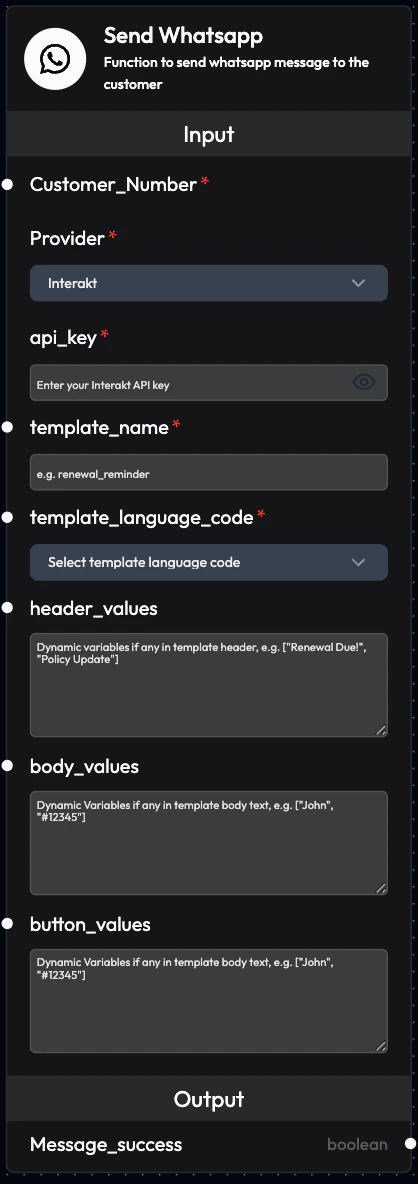
The Send WhatsApp Node allows you to send WhatsApp messages to customers using your preferred service provider. SubVerse supports integration with Interakt and Gupshup platforms.
 ## Supported Providers
SubVerse integrates with two major WhatsApp Business API providers:
* **Interakt**: Popular WhatsApp Business API provider
* **Gupshup**: Enterprise WhatsApp messaging platform
## Use Cases
* **Order Confirmations**: Send order details via WhatsApp
* **Appointment Reminders**: Remind customers about upcoming appointments
* **Payment Links**: Share payment links securely
* **Delivery Updates**: Notify about shipment status
* **OTP Delivery**: Send one-time passwords
* **Customer Support**: Share ticket numbers and updates
* **Marketing Campaigns**: Send promotional messages (with consent)
* **Feedback Requests**: Collect customer feedback
## Interakt Configuration
### Inputs
**Customer\_Number** (Required)
* Customer's phone number
* Format: +\[country code]\[number]
* Example: `+91xxxxxxxxxx`
**Provider**
* Select: `Interakt`
**api\_key** (Required)
* Your Interakt API key for authentication
* Obtain from Interakt dashboard
* Keep secure and don't share
**template\_name** (Required)
* Name of the WhatsApp message template
* Must be pre-approved by WhatsApp
* Example: `order_confirmation`, `appointment_reminder`
**template\_language\_code** (Required)
* Language code for the template
* Examples: `en`, `en_US`, `hi`, `es`
**header\_values**
* Dynamic variables for template headers
* Array format: `["Value1", "Value2"]`
* Example: `["Order Confirmed", "Premium Plan"]`
**body\_values**
* Dynamic variables for the message body
* Array format: `["John", "ORD-12345", "₹2,499"]`
* Maps to template placeholders like `\{\{1\}\}`, `\{\{2\}\}`, `\{\{3\}\}`
**button\_values**
* Dynamic variables for buttons in the message
* Array format for button URLs or quick replies
* Example: `["https://track.example.com/ORD-12345"]`
### Example Configuration
```
Customer_Number: +91xxxxxxxxxx
Provider: Interakt
api_key: your_interakt_api_key
template_name: order_confirmation
template_language_code: en
header_values: ["Order Confirmed"]
body_values: ["John Doe", "ORD-12345", "₹2,499", "Dec 15, 2025"]
button_values: ["https://track.example.com/ORD-12345"]
```
### Outputs
**Message\_success**
* Confirms if the WhatsApp message was successfully sent
* Values: `True` or `False`
* Use for conditional logic and error handling
## Gupshup Configuration
### Inputs
**Customer\_Number** (Required)
* Customer's phone number
* Format: +\[country code]\[number]
* Example: `+91xxxxxxxxxx`
**Provider**
* Select: `Gupshup`
**user\_id** (Required)
* Your Gupshup user ID for authentication
* Obtain from Gupshup dashboard
**password** (Required)
* Your Gupshup password for authentication
* Keep secure and don't share
**template\_id** (Required)
* WhatsApp message template ID
* Must be pre-approved by WhatsApp
* Example: `template_001`, `appointment_reminder_v2`
### Example Configuration
```
Customer_Number: +91xxxxxxxxxx
Provider: Gupshup
user_id: your_gupshup_user_id
password: your_gupshup_password
template_id: order_confirmation_template
```
### Outputs
**Message\_success**
* Confirms if the WhatsApp message was successfully sent
* Values: `True` or `False`
* Use for conditional logic and error handling
## WhatsApp Template Requirements
### Template Approval
All WhatsApp messages must use pre-approved templates:
* **Create Template**: Design in provider dashboard
* **Submit for Approval**: WhatsApp reviews templates
* **Wait for Approval**: Usually 24-48 hours
* **Use Template**: Reference by name/ID in workflow
### Template Components
**Header** (Optional)
* Text, image, video, or document
* Can include one variable
* Example: "Order \{\{1}}"
**Body** (Required)
* Main message content
* Can include multiple variables
* Example: "Hi \{\{1}}, your order \{\{2}} is confirmed!"
**Footer** (Optional)
* Additional information
* No variables allowed
* Example: "Thank you for shopping with us"
**Buttons** (Optional)
* Call-to-action or quick reply buttons
* Can include dynamic URLs
* Example: "Track Order" button
### Template Example
```
Header: Order Confirmed ✓
Body: Hi \{\{1\}\}, your order \{\{2\}\} for ₹\{\{3\}\} is confirmed!
Expected delivery: \{\{4\}\}
Footer: Questions? Reply to this message
Buttons: [Track Order] [Contact Support]
```
## Workflow Integration
### Common Patterns
**Pattern 1: Post-Purchase Confirmation**
```
Upload Data Node (orders)
↓
Voice Agent Node (confirmation call)
↓
Send WhatsApp Node (order details)
```
**Pattern 2: Appointment Reminder**
```
Call API Node (appointment data)
↓
Voice Agent Node (reminder call)
↓
Send WhatsApp Node (appointment details with calendar link)
```
**Pattern 3: Multi-Channel Follow-up**
```
Incoming Call Node
↓
AI Query Agent (analyze call)
↓
Send Email Node (detailed information)
↓
Send WhatsApp Node (quick summary)
```
**Pattern 4: Payment Reminder**
```
Call API Node (overdue payments)
↓
Voice Agent Node (payment reminder call)
↓
Send WhatsApp Node (payment link)
```
## Best Practices
### Template Design
* **Clear Purpose**: Each template should have one clear objective
* **Concise Content**: Keep messages short and actionable
* **Personalization**: Use variables for customer names and details
* **Call-to-Action**: Include clear next steps
### Variable Mapping
* **Consistent Order**: Maintain consistent variable order
* **Validate Data**: Ensure all variables have values
* **Format Properly**: Format numbers, dates, currency correctly
* **Test Thoroughly**: Test with various data combinations
### Compliance
* **Opt-In Required**: Only message customers who opted in
* **Template Approval**: Use only approved templates
* **Timing**: Respect customer time zones and preferences
* **Opt-Out**: Provide easy way to unsubscribe
### Error Handling
* **Check Success**: Always check Message\_success output
* **Retry Logic**: Implement retry for failed messages
* **Fallback Channel**: Use email if WhatsApp fails
* **Log Failures**: Track and analyze failures
## Provider Setup
### Interakt Setup
1. **Create Account**: Sign up at [Interakt](https://www.interakt.ai/)
2. **Get API Key**: Navigate to Settings → API Keys
3. **Create Templates**: Design and submit templates for approval
4. **Configure Webhook**: Set up webhooks for delivery status (optional)
5. **Test Integration**: Send test messages
### Gupshup Setup
1. **Create Account**: Sign up at [Gupshup](https://www.gupshup.io/)
2. **Get Credentials**: Obtain user ID and password
3. **Create Templates**: Design and submit templates for approval
4. **Configure Settings**: Set up sender ID and other settings
5. **Test Integration**: Send test messages
## Monitoring
### Track Message Performance
**Metrics to Monitor:**
* **Delivery Rate**: Percentage of successfully delivered messages
* **Read Rate**: Percentage of messages read by customers
* **Response Rate**: Customer replies to messages
* **Error Rate**: Failed message attempts
### Analyze Results
**Review:**
* Template effectiveness
* Variable data quality
* Timing optimization
* Customer engagement
## Troubleshooting
### Message Not Sending
**Possible Causes:**
* Invalid API credentials
* Template not approved
* Invalid phone number format
* Insufficient credits
**Solutions:**
* Verify API key/credentials
* Check template approval status
* Validate phone number format (+\[country]\[number])
* Check account balance
### Template Variables Not Working
**Possible Causes:**
* Incorrect variable count
* Wrong array format
* Missing values
**Solutions:**
* Match variable count to template
* Use proper array format: `["value1", "value2"]`
* Ensure all variables have values
### Low Delivery Rate
**Possible Causes:**
* Invalid phone numbers
* Customers blocked business
* Network issues
**Solutions:**
* Validate phone numbers before sending
* Respect opt-out requests
* Monitor provider status
## Next Steps
Send email messages
Make voice calls
Generate dynamic content
Integrate with external systems
Link body\_values from AI Query Agent to generate personalized, context-aware WhatsApp messages.
WhatsApp has strict policies against spam. Only send messages to customers who have opted in, and always use approved templates.
## Supported Providers
SubVerse integrates with two major WhatsApp Business API providers:
* **Interakt**: Popular WhatsApp Business API provider
* **Gupshup**: Enterprise WhatsApp messaging platform
## Use Cases
* **Order Confirmations**: Send order details via WhatsApp
* **Appointment Reminders**: Remind customers about upcoming appointments
* **Payment Links**: Share payment links securely
* **Delivery Updates**: Notify about shipment status
* **OTP Delivery**: Send one-time passwords
* **Customer Support**: Share ticket numbers and updates
* **Marketing Campaigns**: Send promotional messages (with consent)
* **Feedback Requests**: Collect customer feedback
## Interakt Configuration
### Inputs
**Customer\_Number** (Required)
* Customer's phone number
* Format: +\[country code]\[number]
* Example: `+91xxxxxxxxxx`
**Provider**
* Select: `Interakt`
**api\_key** (Required)
* Your Interakt API key for authentication
* Obtain from Interakt dashboard
* Keep secure and don't share
**template\_name** (Required)
* Name of the WhatsApp message template
* Must be pre-approved by WhatsApp
* Example: `order_confirmation`, `appointment_reminder`
**template\_language\_code** (Required)
* Language code for the template
* Examples: `en`, `en_US`, `hi`, `es`
**header\_values**
* Dynamic variables for template headers
* Array format: `["Value1", "Value2"]`
* Example: `["Order Confirmed", "Premium Plan"]`
**body\_values**
* Dynamic variables for the message body
* Array format: `["John", "ORD-12345", "₹2,499"]`
* Maps to template placeholders like `\{\{1\}\}`, `\{\{2\}\}`, `\{\{3\}\}`
**button\_values**
* Dynamic variables for buttons in the message
* Array format for button URLs or quick replies
* Example: `["https://track.example.com/ORD-12345"]`
### Example Configuration
```
Customer_Number: +91xxxxxxxxxx
Provider: Interakt
api_key: your_interakt_api_key
template_name: order_confirmation
template_language_code: en
header_values: ["Order Confirmed"]
body_values: ["John Doe", "ORD-12345", "₹2,499", "Dec 15, 2025"]
button_values: ["https://track.example.com/ORD-12345"]
```
### Outputs
**Message\_success**
* Confirms if the WhatsApp message was successfully sent
* Values: `True` or `False`
* Use for conditional logic and error handling
## Gupshup Configuration
### Inputs
**Customer\_Number** (Required)
* Customer's phone number
* Format: +\[country code]\[number]
* Example: `+91xxxxxxxxxx`
**Provider**
* Select: `Gupshup`
**user\_id** (Required)
* Your Gupshup user ID for authentication
* Obtain from Gupshup dashboard
**password** (Required)
* Your Gupshup password for authentication
* Keep secure and don't share
**template\_id** (Required)
* WhatsApp message template ID
* Must be pre-approved by WhatsApp
* Example: `template_001`, `appointment_reminder_v2`
### Example Configuration
```
Customer_Number: +91xxxxxxxxxx
Provider: Gupshup
user_id: your_gupshup_user_id
password: your_gupshup_password
template_id: order_confirmation_template
```
### Outputs
**Message\_success**
* Confirms if the WhatsApp message was successfully sent
* Values: `True` or `False`
* Use for conditional logic and error handling
## WhatsApp Template Requirements
### Template Approval
All WhatsApp messages must use pre-approved templates:
* **Create Template**: Design in provider dashboard
* **Submit for Approval**: WhatsApp reviews templates
* **Wait for Approval**: Usually 24-48 hours
* **Use Template**: Reference by name/ID in workflow
### Template Components
**Header** (Optional)
* Text, image, video, or document
* Can include one variable
* Example: "Order \{\{1}}"
**Body** (Required)
* Main message content
* Can include multiple variables
* Example: "Hi \{\{1}}, your order \{\{2}} is confirmed!"
**Footer** (Optional)
* Additional information
* No variables allowed
* Example: "Thank you for shopping with us"
**Buttons** (Optional)
* Call-to-action or quick reply buttons
* Can include dynamic URLs
* Example: "Track Order" button
### Template Example
```
Header: Order Confirmed ✓
Body: Hi \{\{1\}\}, your order \{\{2\}\} for ₹\{\{3\}\} is confirmed!
Expected delivery: \{\{4\}\}
Footer: Questions? Reply to this message
Buttons: [Track Order] [Contact Support]
```
## Workflow Integration
### Common Patterns
**Pattern 1: Post-Purchase Confirmation**
```
Upload Data Node (orders)
↓
Voice Agent Node (confirmation call)
↓
Send WhatsApp Node (order details)
```
**Pattern 2: Appointment Reminder**
```
Call API Node (appointment data)
↓
Voice Agent Node (reminder call)
↓
Send WhatsApp Node (appointment details with calendar link)
```
**Pattern 3: Multi-Channel Follow-up**
```
Incoming Call Node
↓
AI Query Agent (analyze call)
↓
Send Email Node (detailed information)
↓
Send WhatsApp Node (quick summary)
```
**Pattern 4: Payment Reminder**
```
Call API Node (overdue payments)
↓
Voice Agent Node (payment reminder call)
↓
Send WhatsApp Node (payment link)
```
## Best Practices
### Template Design
* **Clear Purpose**: Each template should have one clear objective
* **Concise Content**: Keep messages short and actionable
* **Personalization**: Use variables for customer names and details
* **Call-to-Action**: Include clear next steps
### Variable Mapping
* **Consistent Order**: Maintain consistent variable order
* **Validate Data**: Ensure all variables have values
* **Format Properly**: Format numbers, dates, currency correctly
* **Test Thoroughly**: Test with various data combinations
### Compliance
* **Opt-In Required**: Only message customers who opted in
* **Template Approval**: Use only approved templates
* **Timing**: Respect customer time zones and preferences
* **Opt-Out**: Provide easy way to unsubscribe
### Error Handling
* **Check Success**: Always check Message\_success output
* **Retry Logic**: Implement retry for failed messages
* **Fallback Channel**: Use email if WhatsApp fails
* **Log Failures**: Track and analyze failures
## Provider Setup
### Interakt Setup
1. **Create Account**: Sign up at [Interakt](https://www.interakt.ai/)
2. **Get API Key**: Navigate to Settings → API Keys
3. **Create Templates**: Design and submit templates for approval
4. **Configure Webhook**: Set up webhooks for delivery status (optional)
5. **Test Integration**: Send test messages
### Gupshup Setup
1. **Create Account**: Sign up at [Gupshup](https://www.gupshup.io/)
2. **Get Credentials**: Obtain user ID and password
3. **Create Templates**: Design and submit templates for approval
4. **Configure Settings**: Set up sender ID and other settings
5. **Test Integration**: Send test messages
## Monitoring
### Track Message Performance
**Metrics to Monitor:**
* **Delivery Rate**: Percentage of successfully delivered messages
* **Read Rate**: Percentage of messages read by customers
* **Response Rate**: Customer replies to messages
* **Error Rate**: Failed message attempts
### Analyze Results
**Review:**
* Template effectiveness
* Variable data quality
* Timing optimization
* Customer engagement
## Troubleshooting
### Message Not Sending
**Possible Causes:**
* Invalid API credentials
* Template not approved
* Invalid phone number format
* Insufficient credits
**Solutions:**
* Verify API key/credentials
* Check template approval status
* Validate phone number format (+\[country]\[number])
* Check account balance
### Template Variables Not Working
**Possible Causes:**
* Incorrect variable count
* Wrong array format
* Missing values
**Solutions:**
* Match variable count to template
* Use proper array format: `["value1", "value2"]`
* Ensure all variables have values
### Low Delivery Rate
**Possible Causes:**
* Invalid phone numbers
* Customers blocked business
* Network issues
**Solutions:**
* Validate phone numbers before sending
* Respect opt-out requests
* Monitor provider status
## Next Steps
Send email messages
Make voice calls
Generate dynamic content
Integrate with external systems
Link body\_values from AI Query Agent to generate personalized, context-aware WhatsApp messages.
WhatsApp has strict policies against spam. Only send messages to customers who have opted in, and always use approved templates.