

Accessing the Platform
SubVerse AI provides a comprehensive web-based dashboard for managing all aspects of your AI agents and workflows. Access the platform at dashboard.subverseai.com.Creating Your Account
Sign Up Process
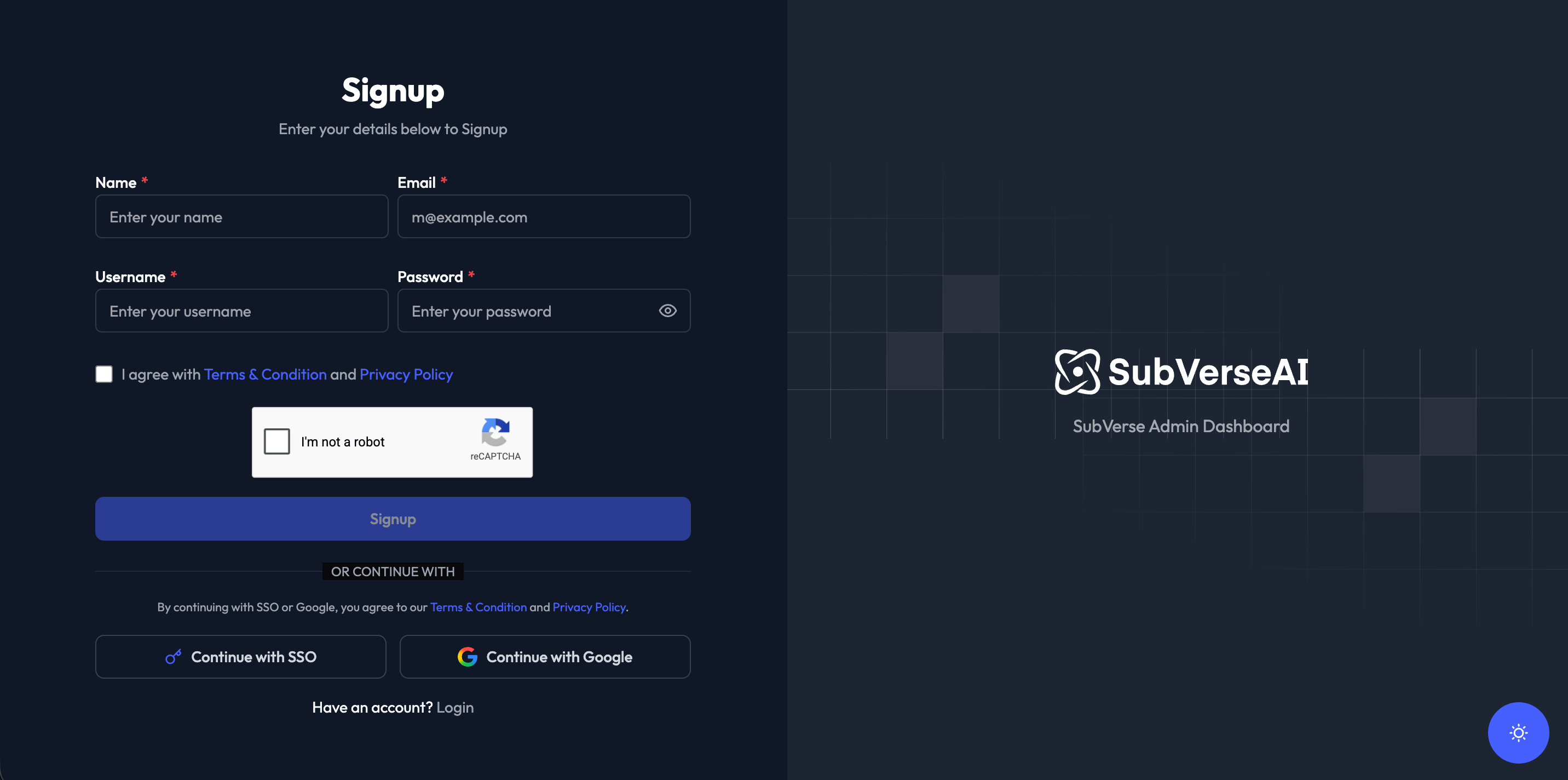
- Navigate to the SubVerse dashboard
- Click on Sign Up if you’re a new user
- Fill in the required information:
- Name: Your full name
- Email: Business email address
- Username: Choose a unique username
- Phone: Contact number with country code
- Password: Create a secure password
- Country: Select your country
- Accept the Terms & Conditions and Privacy Policy
- Click Signup to create your account
You’ll receive a verification email to confirm your account. Make sure to check your spam folder if you don’t see it in your inbox.
Logging In
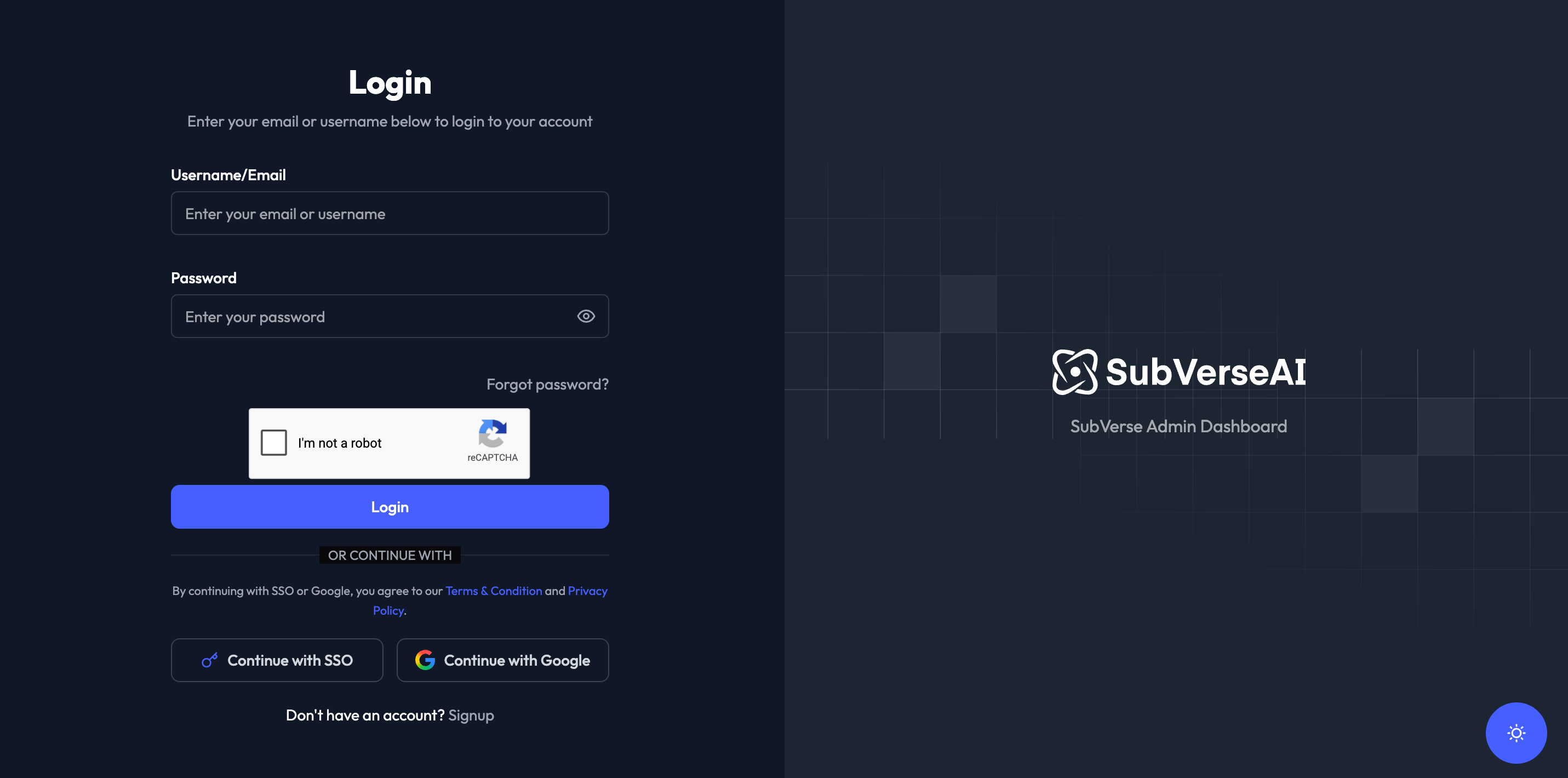
- Go to dashboard.subverseai.com
- Enter your Username/Email
- Enter your Password
- Click Login to access your dashboard
Dashboard Overview
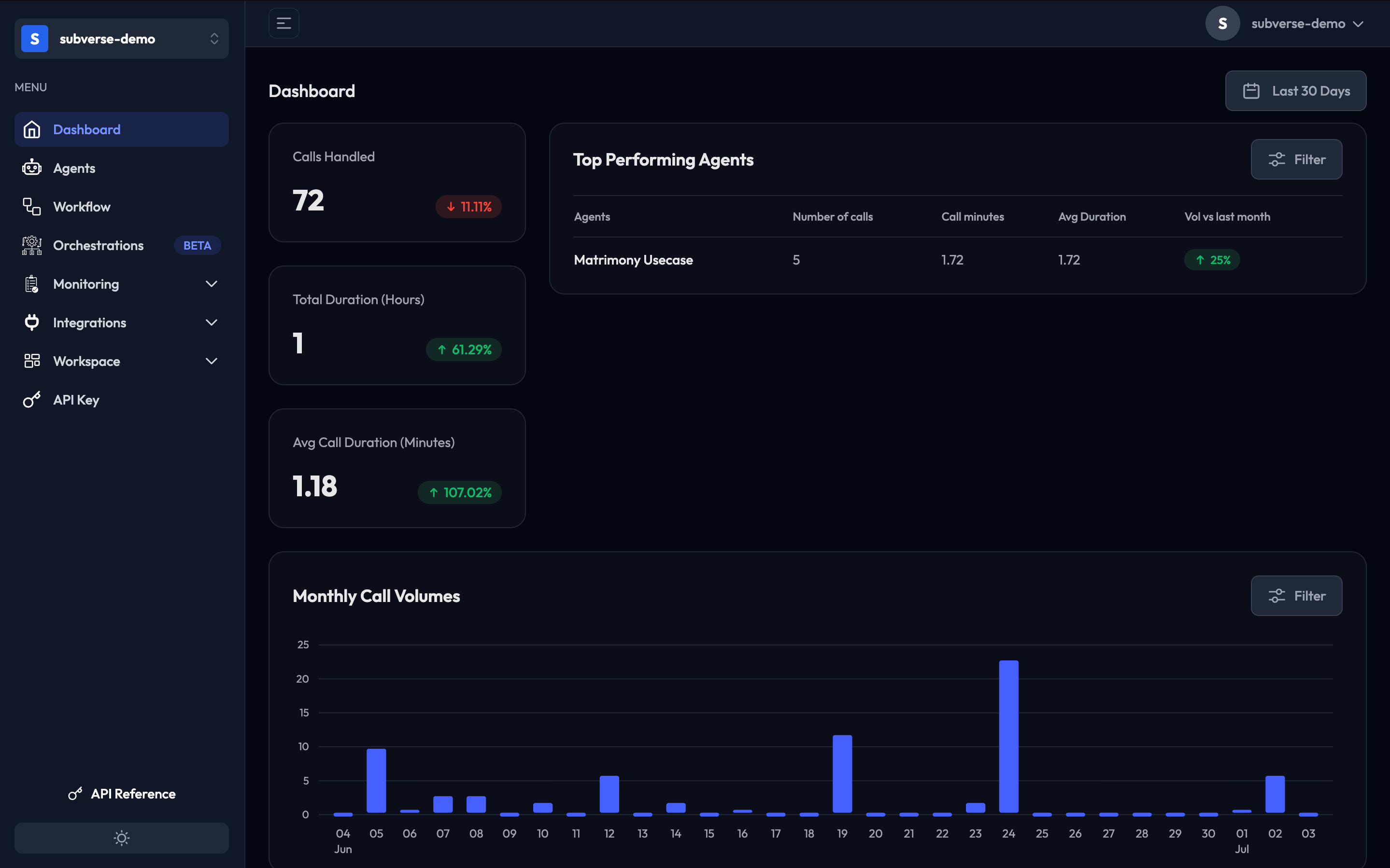
Navigation Menu
The left sidebar provides access to all platform features: Main Sections:- Dashboard: Overview of your platform metrics and performance
- Agents: Manage your conversational AI agents
- Call History: View and analyze all call records
- Workflow: Build and manage automated workflows
- Reports: Access detailed analytics and reports
- Integrations: Configure external integrations
- API Key: Manage API keys for programmatic access
- API Reference: Documentation for REST APIs
Quick Actions
From the dashboard, you can quickly:- Create a New Agent: Click + Add Voice Agent to start building
- View Call History: Monitor recent interactions
- Check Performance: Review metrics and KPIs
- Access Integrations: Configure telephony and tools
- Generate Reports: Export data for analysis
Dashboard Features
Real-Time Updates
The dashboard updates in real-time, showing:- Active calls in progress
- Recent call completions
- Agent status changes
- System notifications
Filtering and Search
Use the filter options to:- View specific time periods (Last 30 Days, custom ranges)
- Filter by agent type
- Search for specific calls or agents
- Export filtered data
Responsive Design
The dashboard is fully responsive and works on:- Desktop computers
- Tablets
- Mobile devices (limited functionality)
Next Steps
Now that you’re familiar with the dashboard, you can:Create Your First Agent
Learn how to build and configure AI agents
Monitor Calls
Track and analyze call performance
Set Up Integrations
Connect telephony and external systems
Build Workflows
Automate business processes
Support and Help
If you need assistance:- Documentation: Browse our comprehensive guides
- Support: Contact us at [email protected]
- Community: Join our user community for tips and best practices