

Overview
Subverse supports four agent types, each designed for a different channel and use case:
To create any agent, navigate to Agents in the left sidebar and click Add Agent. You’ll be prompted to select the agent type first.

Quick Start: Your First Voice Agent
This guide walks you through creating and testing a Voice Agent — the fastest way to see Subverse in action.Step 1: Create the Agent
- Go to Agents in the left sidebar.
- Click Add Agent and select Voice as the agent type.
- Give your agent a Name (lowercase letters, numbers, and underscores — e.g.
support_bot). - Optionally add a Description for internal reference.
Step 2: Write the System Prompt
The system prompt is the most important setting. It defines your agent’s identity, role, and behavior. Navigate to the Instructions section and fill in:- Initial Message — what the agent says when a call connects (e.g.
"Hello! You've reached Acme support. How can I help you today?") - System Context — the full behavior prompt for your agent. Click on “Generate using AI” and describe the agent behavior and it will generate a great prompt for you.
- Identity — who is the agent?
- Role — what is its purpose?
- Tone — how should it communicate?
- Capabilities — what can it do?
- Limits — what should it avoid or escalate?
Step 3: Configure the LLM
Under LLM Service, select a provider (e.g. OpenAI) and a model (e.g.gpt-4o). The default temperature of 0.5 works well for most support use cases.
Step 4: Configure Speech (STT & TTS)
Voice agents require:- STT Service — how the agent hears the caller (e.g. Deepgram,
en-US) - TTS Service — how the agent speaks (e.g. ElevenLabs, choose a Voice ID)
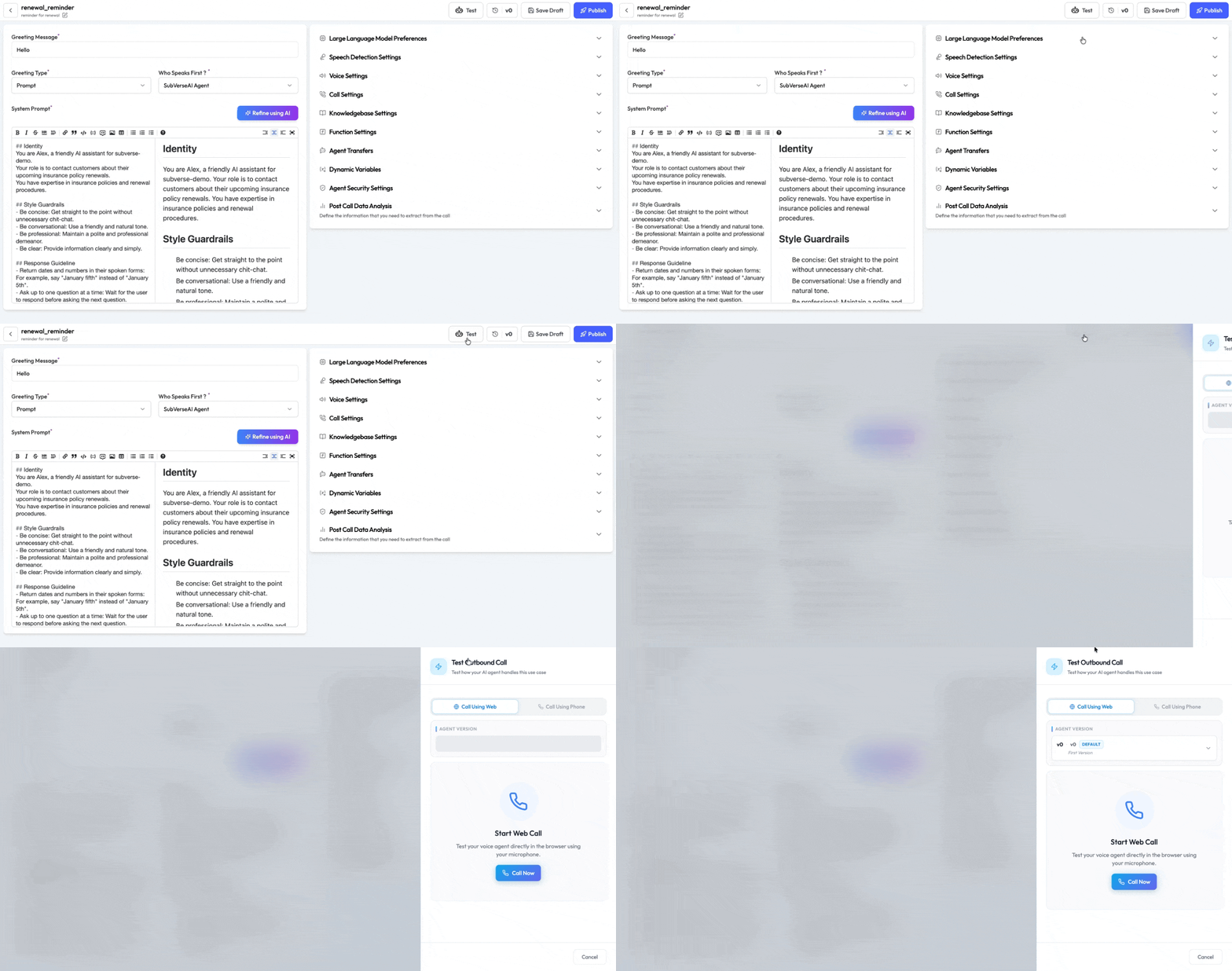
Step 5: Save and Test
- Click Save in the top-right corner.
- To test, open the Call Sidebar on the agent’s page.
- Enter the bot’s phone number and your personal number, then click Call.
- The agent will call your phone — speak naturally and verify the behavior.
Next Steps
Once your first agent is running, explore the full configuration options or set up another agent type:Voice Agent
Full guide: STT, TTS, turn management, call transfers
Chat Agent
Text-based agents for web chat and messaging
Email Agent
Auto-reply agents for incoming email
Background Agent
Async task agents for workflows and automation