

Overview
The Call API Node allows you to inject customer details into the system using the workflow call API. This is the most flexible way to trigger workflows programmatically from your applications or systems.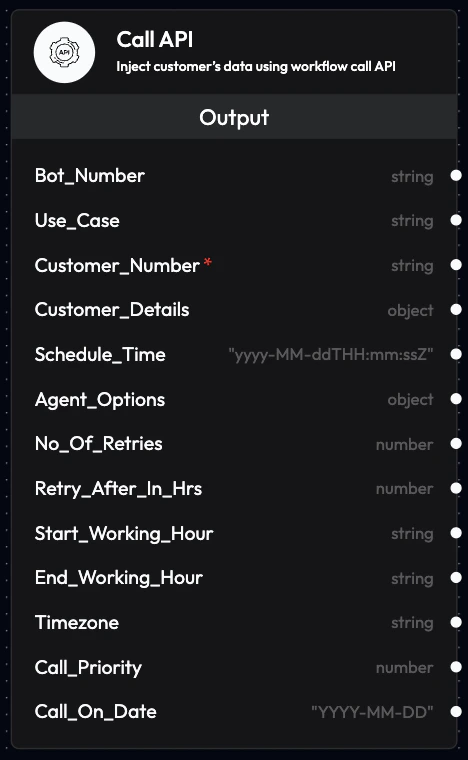
Use Cases
- CRM Integration: Trigger workflows when customer records are updated
- E-commerce: Initiate calls after order placement or cart abandonment
- Scheduling Systems: Start workflows at specific times
- External Applications: Connect any system that can make HTTP requests
- Automated Campaigns: Launch outbound calling campaigns
Outputs
The Call API Node provides the following outputs that can be used by subsequent blocks in your workflow:Bot_Number
- Phone number the voice agent will use to make or receive calls
- Format: Include country code (e.g., +91xxxxxxxxxx)
- Can be linked to telephony integrations
Use_Case
- Defines which voice agent will be used for the call
- References the agent configured in the Agents section
- Allows dynamic agent selection based on workflow logic
Customer_Number
- Customer’s phone number for the call
- Format: Include country code (e.g., +91xxxxxxxxxx)
- Required for outbound calls
Customer_Details
- Customer information in JSON format
- Can include: name, email, order ID, preferences, etc.
- Used to personalize agent conversations
Schedule_Time
- Schedule the call for a specific future time
- Format: ISO date format
YYYY-MM-DDTHH:MM:SSZ - Default: Current time (immediate execution)
Agent_Options
- Override default agent settings for this specific call
- Can modify: language, voice, initial prompt, etc.
- Allows per-call customization
No_Of_Retries
- Number of retry attempts if the call fails
- Default: 0 (no retries)
- Useful for ensuring call completion
Retries_After_In_Hrs
- Time interval between retry attempts (in hours)
- Works in conjunction with No_Of_Retries
- Example: 2 (retry after 2 hours)
Start_Working_Hour
- Start of business hours in 24-hour format (HH:MM)
- Calls scheduled before this time will be rescheduled
- Example: “09:00”
End_Working_Hour
- End of business hours in 24-hour format (HH:MM)
- Calls after this time will be rescheduled to next day
- Example: “18:00”
Timezone
- Timezone for working hours calculation
- Default: Asia/Kolkata
- Example: “America/New_York”, “Europe/London”
Call_Priority
- Priority level for the call
- Type: Number
- Higher numbers indicate higher priority
- Used for queue management
Call_On_Date
- Specific date to make the call
- Format:
YYYY-MM-DD - Example:
2025-12-10 - Works with Schedule_Time for precise scheduling
API Integration
To use the Call API Node, you’ll need to make HTTP POST requests to the workflow trigger endpoint:Configuration Best Practices
Working Hours
- Set appropriate working hours to respect customer preferences
- Consider timezone differences for international customers
- Use retry logic for calls outside business hours
Customer Details
- Include all relevant information for personalization
- Keep JSON structure consistent across calls
- Validate data before sending to API
Retry Strategy
- Set reasonable retry counts (2-3 attempts)
- Space out retries appropriately (1-2 hours)
- Monitor retry success rates
Agent Selection
- Use appropriate agents for different call types
- Consider language and voice preferences
- Test agent performance before scaling
Error Handling
The API will return appropriate error codes:- 200: Success - workflow triggered
- 400: Bad Request - invalid parameters
- 401: Unauthorized - invalid API key
- 404: Not Found - workflow doesn’t exist
- 500: Server Error - contact support
Monitoring
Track your API-triggered workflows:- View in Call History section
- Monitor success/failure rates
- Analyze call outcomes
- Review transcripts and recordings
Example Workflows
E-commerce Order Confirmation
Appointment Reminder
Payment Reminder
Next Steps
Voice Agent Node
Make outbound calls to customers
AI Query Agent Node
Process data with AI-driven decisions
API Reference
Complete API documentation
Schedule Callback
Schedule follow-up calls