

Overview
The Send WhatsApp Node allows you to send WhatsApp messages to customers using your preferred service provider. SubVerse supports integration with Interakt and Gupshup platforms.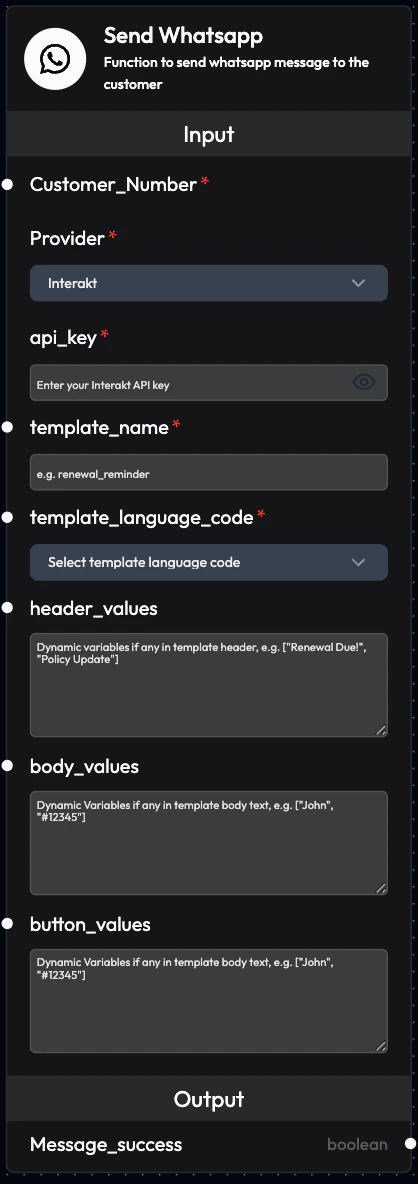
Supported Providers
SubVerse integrates with two major WhatsApp Business API providers:- Interakt: Popular WhatsApp Business API provider
- Gupshup: Enterprise WhatsApp messaging platform
Use Cases
- Order Confirmations: Send order details via WhatsApp
- Appointment Reminders: Remind customers about upcoming appointments
- Payment Links: Share payment links securely
- Delivery Updates: Notify about shipment status
- OTP Delivery: Send one-time passwords
- Customer Support: Share ticket numbers and updates
- Marketing Campaigns: Send promotional messages (with consent)
- Feedback Requests: Collect customer feedback
Interakt Configuration
Inputs
Customer_Number (Required)- Customer’s phone number
- Format: +[country code][number]
- Example:
+91xxxxxxxxxx
- Select:
Interakt
- Your Interakt API key for authentication
- Obtain from Interakt dashboard
- Keep secure and don’t share
- Name of the WhatsApp message template
- Must be pre-approved by WhatsApp
- Example:
order_confirmation,appointment_reminder
- Language code for the template
- Examples:
en,en_US,hi,es
- Dynamic variables for template headers
- Array format:
["Value1", "Value2"] - Example:
["Order Confirmed", "Premium Plan"]
- Dynamic variables for the message body
- Array format:
["John", "ORD-12345", "₹2,499"] - Maps to template placeholders like
\{\{1\}\},\{\{2\}\},\{\{3\}\}
- Dynamic variables for buttons in the message
- Array format for button URLs or quick replies
- Example:
["https://track.example.com/ORD-12345"]
Example Configuration
Outputs
Message_success- Confirms if the WhatsApp message was successfully sent
- Values:
TrueorFalse - Use for conditional logic and error handling
Gupshup Configuration
Inputs
Customer_Number (Required)- Customer’s phone number
- Format: +[country code][number]
- Example:
+91xxxxxxxxxx
- Select:
Gupshup
- Your Gupshup user ID for authentication
- Obtain from Gupshup dashboard
- Your Gupshup password for authentication
- Keep secure and don’t share
- WhatsApp message template ID
- Must be pre-approved by WhatsApp
- Example:
template_001,appointment_reminder_v2
Example Configuration
Outputs
Message_success- Confirms if the WhatsApp message was successfully sent
- Values:
TrueorFalse - Use for conditional logic and error handling
WhatsApp Template Requirements
Template Approval
All WhatsApp messages must use pre-approved templates:- Create Template: Design in provider dashboard
- Submit for Approval: WhatsApp reviews templates
- Wait for Approval: Usually 24-48 hours
- Use Template: Reference by name/ID in workflow
Template Components
Header (Optional)- Text, image, video, or document
- Can include one variable
- Example: “Order {{1}}”
- Main message content
- Can include multiple variables
- Example: “Hi {{1}}, your order {{2}} is confirmed!”
- Additional information
- No variables allowed
- Example: “Thank you for shopping with us”
- Call-to-action or quick reply buttons
- Can include dynamic URLs
- Example: “Track Order” button
Template Example
Workflow Integration
Common Patterns
Pattern 1: Post-Purchase ConfirmationBest Practices
Template Design
- Clear Purpose: Each template should have one clear objective
- Concise Content: Keep messages short and actionable
- Personalization: Use variables for customer names and details
- Call-to-Action: Include clear next steps
Variable Mapping
- Consistent Order: Maintain consistent variable order
- Validate Data: Ensure all variables have values
- Format Properly: Format numbers, dates, currency correctly
- Test Thoroughly: Test with various data combinations
Compliance
- Opt-In Required: Only message customers who opted in
- Template Approval: Use only approved templates
- Timing: Respect customer time zones and preferences
- Opt-Out: Provide easy way to unsubscribe
Error Handling
- Check Success: Always check Message_success output
- Retry Logic: Implement retry for failed messages
- Fallback Channel: Use email if WhatsApp fails
- Log Failures: Track and analyze failures
Provider Setup
Interakt Setup
- Create Account: Sign up at Interakt
- Get API Key: Navigate to Settings → API Keys
- Create Templates: Design and submit templates for approval
- Configure Webhook: Set up webhooks for delivery status (optional)
- Test Integration: Send test messages
Gupshup Setup
- Create Account: Sign up at Gupshup
- Get Credentials: Obtain user ID and password
- Create Templates: Design and submit templates for approval
- Configure Settings: Set up sender ID and other settings
- Test Integration: Send test messages
Monitoring
Track Message Performance
Metrics to Monitor:- Delivery Rate: Percentage of successfully delivered messages
- Read Rate: Percentage of messages read by customers
- Response Rate: Customer replies to messages
- Error Rate: Failed message attempts
Analyze Results
Review:- Template effectiveness
- Variable data quality
- Timing optimization
- Customer engagement
Troubleshooting
Message Not Sending
Possible Causes:- Invalid API credentials
- Template not approved
- Invalid phone number format
- Insufficient credits
- Verify API key/credentials
- Check template approval status
- Validate phone number format (+[country][number])
- Check account balance
Template Variables Not Working
Possible Causes:- Incorrect variable count
- Wrong array format
- Missing values
- Match variable count to template
- Use proper array format:
["value1", "value2"] - Ensure all variables have values
Low Delivery Rate
Possible Causes:- Invalid phone numbers
- Customers blocked business
- Network issues
- Validate phone numbers before sending
- Respect opt-out requests
- Monitor provider status
Next Steps
Send Email Node
Send email messages
Voice Agent Node
Make voice calls
AI Query Agent Node
Generate dynamic content
Webhook Node
Integrate with external systems