

Overview
This guide walks you through connecting an Ozonetel SIP trunk to SubVerse AI, so voice agents can answer incoming calls on your Ozonetel numbers and place outgoing calls from them. Ozonetel doesn’t offer SIP trunk setup in their portal, so their team provisions it for you. The work splits in two: you request the trunk and share the connection details, then you add the trunk in SubVerse once Ozonetel confirms it’s ready.Ozonetel provisions the trunk for you. There’s no self-service option in the Ozonetel portal. Ask your Ozonetel contact to set up a SIP trunk, then share the connection details from this guide with them.
Prerequisites
- An Ozonetel account, with the numbers you want to use
- Your Ozonetel contact (SPOC) or support team, who will provision the trunk
- A voice agent in SubVerse, if you’re setting up inbound calls
- A decision on direction: inbound, outbound, or both. Ozonetel configures each separately.
Step 1: Request a SIP Trunk from Ozonetel
Contact your Ozonetel SPOC or support team and ask them to provision a SIP trunk for connecting to an external voice platform. Say which directions you need:Step 2: Share Connection Details with Ozonetel
Send your Ozonetel contact the details below. They cover everything their team needs to configure the trunk.SIP Host
Ozonetel should send inbound calls to this host, and will receive outbound calls from it:Inbound: Where to Send Calls
Each call should be sent to the SIP host with the dialed number in the Request-URI:+919898989898 becomes:
Outbound: What to Accept
- Accept calls from the SubVerse SIP host, and dial the number in the user part of the Request-URI.
- Allow the numbers SubVerse sends in the
Fromheader as caller ID. These are the trunk numbers you add in SubVerse.
IP Ranges to Whitelist
Outside India, SubVerse doesn’t send traffic from fixed IP addresses, so those two ranges together allow all addresses. Always pair IP whitelisting with username and password authentication.
SIP and Media Settings
Step 3: Collect Your Trunk Details
Once the trunk is provisioned, Ozonetel gives you the values for the SubVerse form:Step 4: Configure in SubVerse Dashboard
Go to Integrations → Ozonetel → Connections and add an inbound or outbound SIP trunk. Add both if you want calls in both directions.For Inbound Calls
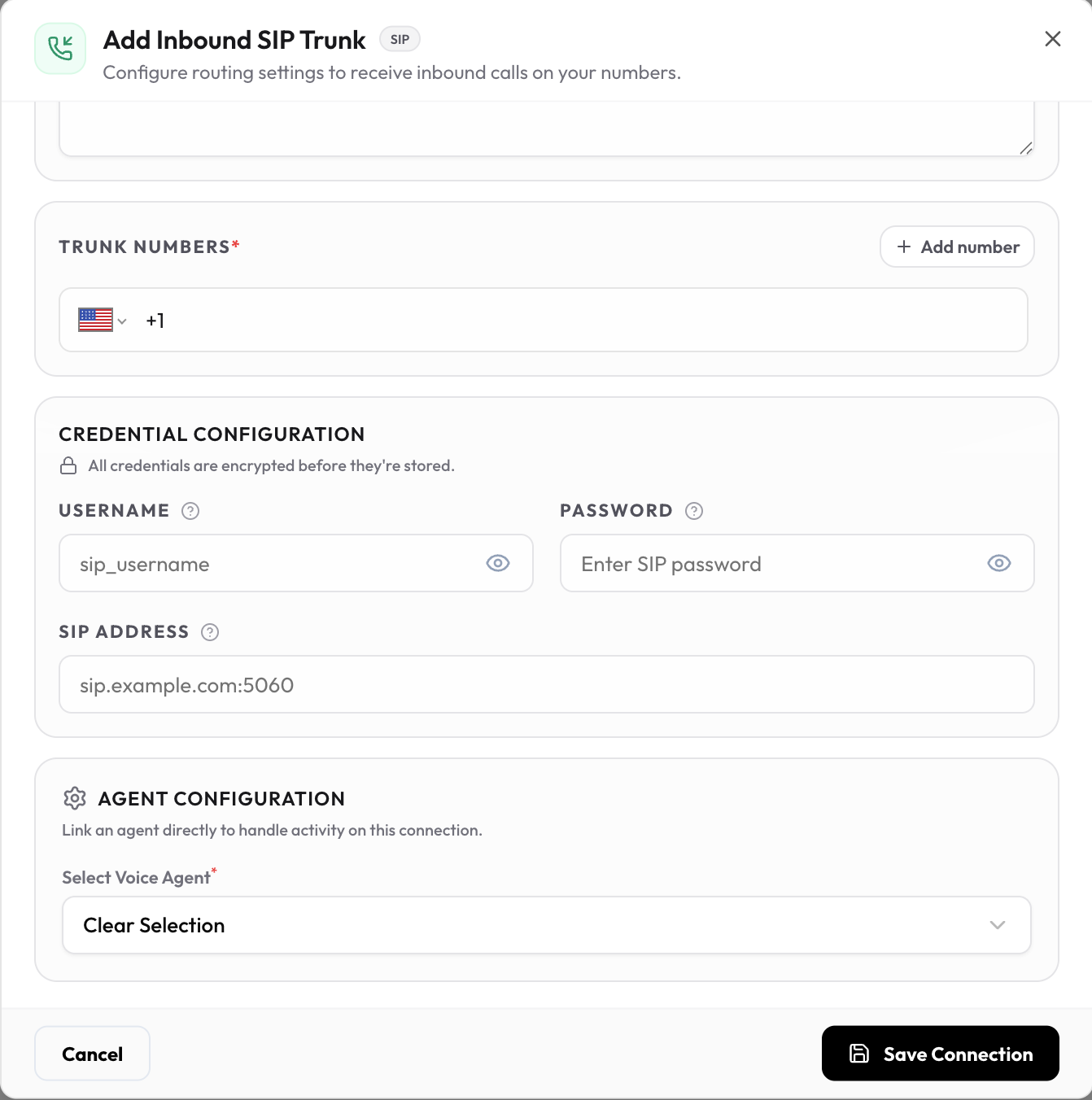
Click Save connection. All credentials are encrypted before they’re stored.
For Outbound Calls
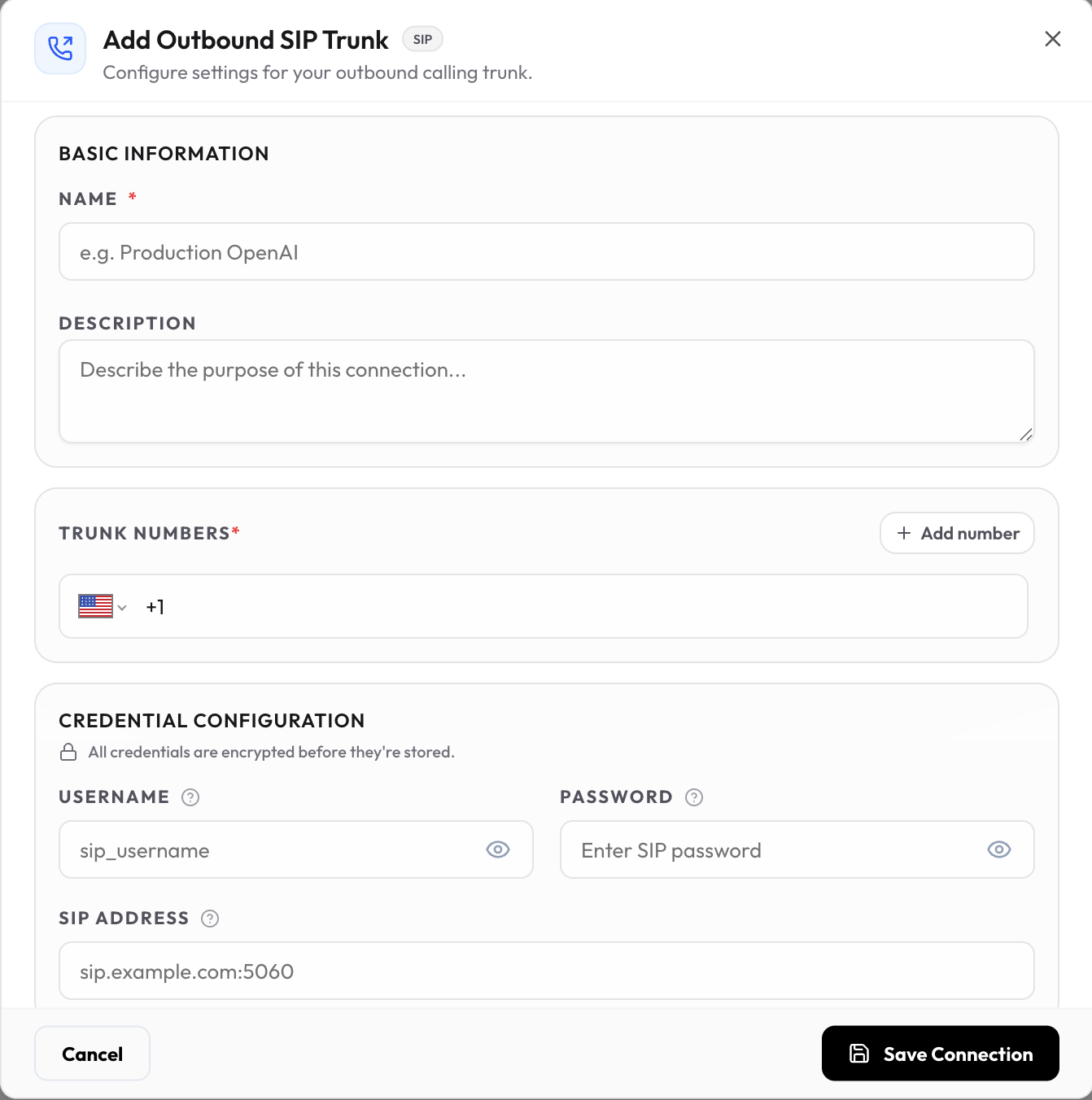
Click Save connection. You can now use these numbers to place calls from voice agents, workflows, and the call APIs.
Testing Your Configuration
- Call your number: From any phone, call a number on the inbound trunk and confirm the voice agent answers.
- Check the audio: Confirm clear two-way audio, without noticeable delay or jitter.
- Check DTMF: If your agent uses keypad input, press a few keys and confirm they’re detected.
- Place an outbound call: Start a call from a voice agent and confirm the Ozonetel number shows as the caller ID.
- Hang up: End the call from each side and confirm it disconnects on both.
Troubleshooting
Ozonetel configures the trunk on their side, so share the details from this page with your SPOC when something doesn’t match.Inbound Calls Don’t Reach the Agent
Check:- Ozonetel sends calls to
sip:<number>@1meh2bmhw0z.india.sip.livekit.cloud - The number is in E.164 format and added to the SubVerse inbound trunk
- A voice agent is selected on the inbound trunk
Inbound Calls Are Rejected with 401, 403 or 407
Check:- The username and password match on both sides
- The SIP address on the trunk matches where Ozonetel sends calls from
Outbound Calls Fail with 401 or 407
Check:- The username, password, and SIP address on the outbound trunk match what Ozonetel provided
Outbound Calls Fail with 403
Check:- Ozonetel has whitelisted the SubVerse IP ranges
- Ozonetel allows the caller ID in the
Fromheader
Outbound Calls Fail with 404 or 484
Check:- The dialed number is in E.164 format
- Ozonetel dials the number in the Request-URI
No Audio or One-Way Audio
Check:- UDP ports
50000–60000are open for the whitelisted ranges - Both sides share at least one codec
Calls Drop After About 30 Seconds
Check:- Signaling replies, such as
ACK, aren’t blocked by a firewall or NAT
- Ask Ozonetel to try TCP instead of UDP
Keypad Presses Aren’t Detected
Check:- DTMF is sent as RFC 2833 telephone events, not as in-band audio
Next Steps
Configure with Twilio
Set up Twilio SIP trunk
Configure with Plivo
Set up Plivo SIP trunk
Create Voice Agent
Build your first AI voice agent
Call History
Monitor your calls