

Airtable OAuth2 API Credentials
Airtable OAuth2 API credentials allow your SubverseAI agents to authenticate with Airtable using the OAuth2 standard for secure API access.Overview
Airtable OAuth2 credentials provide access to:- OAuth2-based Airtable API authentication
- Automatic token refresh
- Secure user-specific access
- Enterprise integration
- Enhanced security workflows
Dashboard Screenshot
Steps to Create Airtable OAuth2 API Credentials
1. Create Airtable Account
- Visit Airtable
- Sign up or sign in to your account
- Navigate to the Developer Hub
2. Create OAuth2 App
- Go to Developer Hub > OAuth2
- Click Create new OAuth2 application
- Enter application details:
- Name: Descriptive name (e.g., “SubverseAI OAuth2 Integration”)
- Description: Brief description of your integration
- Logo: Upload app logo (optional)
- Configure Redirect URIs:
- Add your SubverseAI callback URL
- Format:
https://your-subverseai-domain.com/oauth/callback
- Click Create application
3. Get OAuth2 Credentials
From your app settings, collect:- Client ID: Your OAuth2 client identifier
- Client Secret: Your OAuth2 client secret
- Authorization URL: Airtable OAuth2 authorization endpoint
- Token URL: Airtable OAuth2 token endpoint
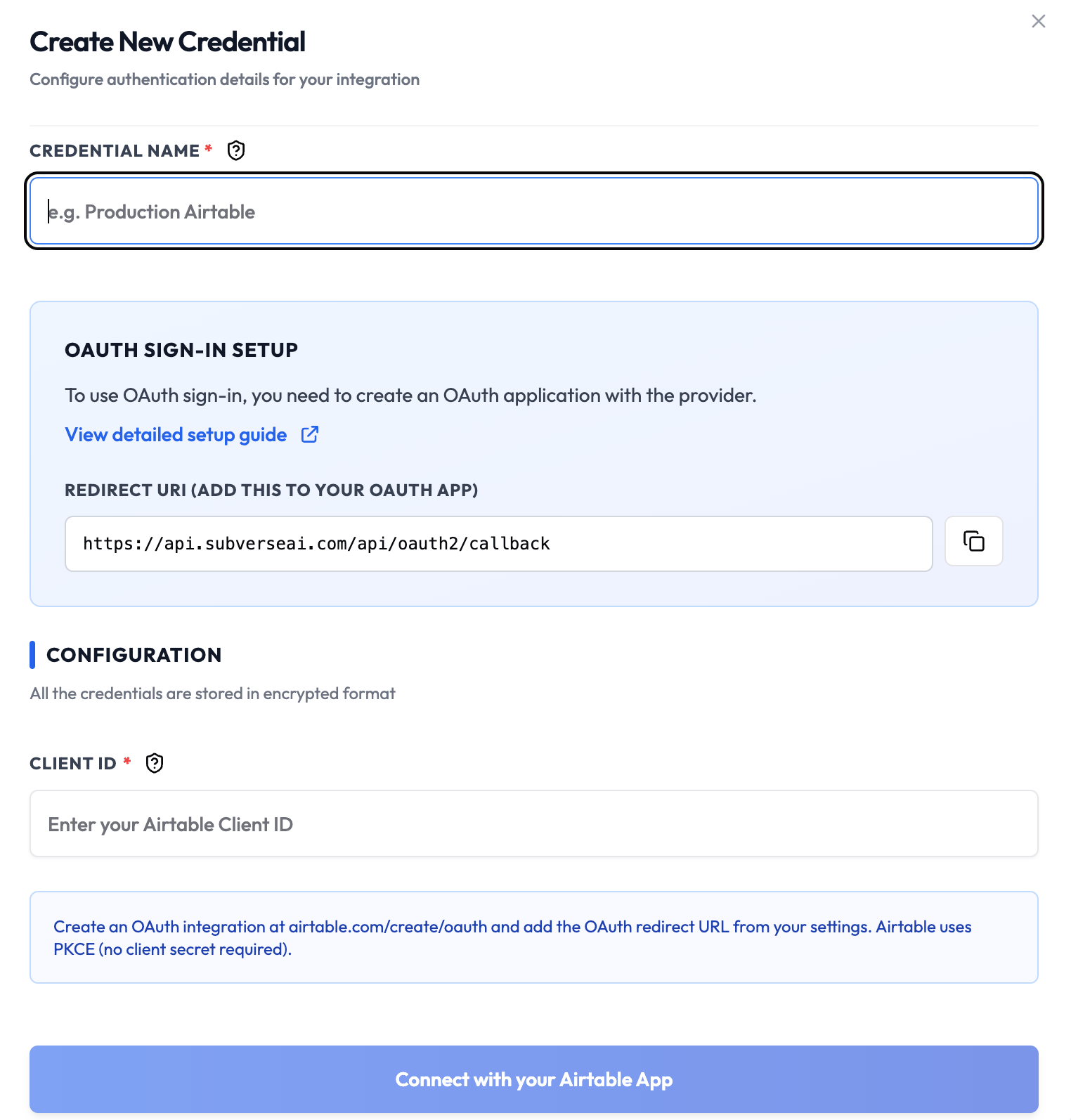
4. Add to SubverseAI
- Go to Credentials in your SubverseAI dashboard
- Click Create New Credential
- Select Airtable OAuth2 API from the credential types
- Enter a name for your credential
- Fill in the required fields:
- Client ID: Your Airtable OAuth2 client ID
- Client Secret: Your Airtable OAuth2 client secret
- Scope: Required permissions (e.g., “data.records:read data.records:write”)
- Redirect URI: Your OAuth2 callback URL
- Click Test Connection to verify the credentials work
- Click Save Credential
Required Fields
- Name: A descriptive name for your credential
- Client ID: Your Airtable OAuth2 client ID
- Client Secret: Your Airtable OAuth2 client secret
- Scope: Required permissions (space-separated)
- Redirect URI: OAuth2 callback URL
Usage Tips
- Use specific scopes to limit access to required operations
- Test with different workspaces and bases
- Monitor token refresh and expiration
- Use separate apps for development and production
Troubleshooting
Invalid Client: Verify Client ID and Secret are correct Redirect URI Mismatch: Ensure the redirect URI matches exactly Scope Insufficient: Add required Airtable API scopes Workspace Access: Ensure the app has access to target workspacesNext Steps
After creating your Airtable OAuth2 credentials:- Set up OAuth2 authentication workflows
- Configure automatic token refresh
- Build workspace-specific integrations
- Test different base and table access
- Monitor authentication success rates