

WhatsApp OAuth API Credentials
WhatsApp OAuth API credentials allow your SubverseAI agents to authenticate with the WhatsApp Business Platform using OAuth client credentials for messaging workflows.Overview
WhatsApp OAuth API credentials provide access to:- WhatsApp webhook configuration
- Message trigger setup
- Real-time message reception
- Event-driven workflows
- Automated response systems
Dashboard Screenshot
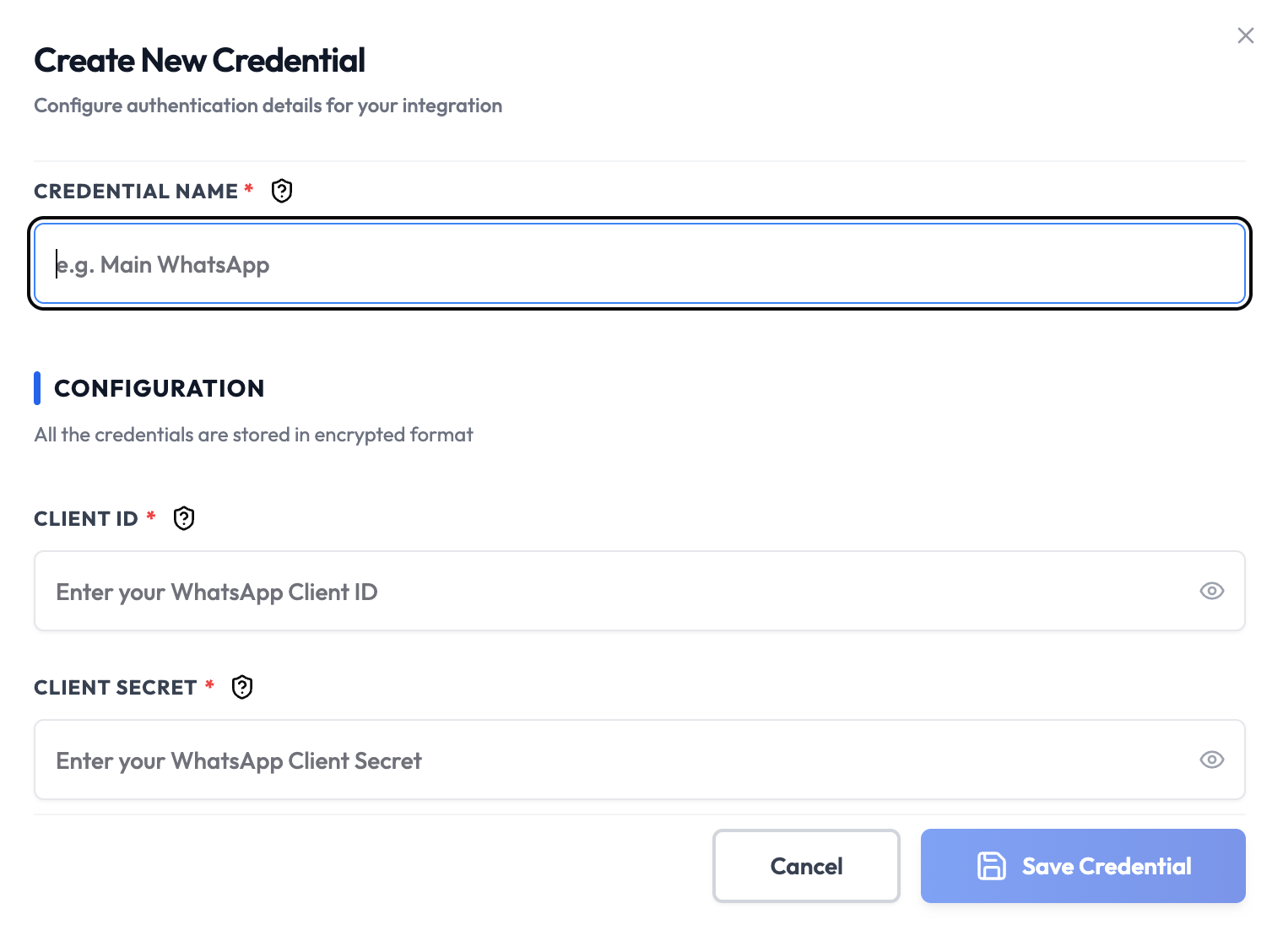
Steps to Create WhatsApp OAuth API Credentials
1. Set Up WhatsApp Business Account
- Visit Meta Business Suite
- Create or select your WhatsApp Business account
- Verify your business information and phone number
2. Create WhatsApp App
- Go to Apps in Meta Business Suite
- Click Create App
- Select Business app type
- Enter app name (e.g., “SubverseAI WhatsApp Triggers”)
- Click Create App
3. Configure WhatsApp Product
- In your app dashboard, click Add Products
- Select WhatsApp
- Configure WhatsApp settings:
- Choose your WhatsApp Business Account
- Set up message templates
- Configure webhook settings
4. Set Up Webhook
- In WhatsApp settings, go to Webhooks
- Click Configure
- Enter your webhook URL:
https://your-subverseai-domain.com/webhooks/whatsapp - Select webhook events:
- Messages: Incoming messages
- Message Status: Delivery and read receipts
- Account Updates: Account status changes
- Click Verify and Save
5. Get OAuth Credentials
- Go to the Meta Developer Console
- Select your WhatsApp Business app
- Go to App Settings > Basic
- Copy the App ID as your Client ID
- Copy the App Secret as your Client Secret
6. Add to SubverseAI
- Go to Credentials in your SubverseAI dashboard
- Click Create New Credential
- Select WhatsApp OAuth API from the credential types
- Enter a name for your credential (e.g., Main WhatsApp)
- Fill in the required fields:
- Client ID: Your WhatsApp Business Platform OAuth Client ID from the Meta Developer Console
- Client Secret: Your WhatsApp Business Platform OAuth Client Secret from the Meta Developer Console
- Click Save Credential
Required Fields
- Name: A descriptive name for your credential
- Client ID: Your WhatsApp Business Platform OAuth Client ID from the Meta Developer Console
- Client Secret: Your WhatsApp Business Platform OAuth Client Secret for secure authentication
Usage Tips
- Use HTTPS URLs for webhooks
- Test webhook endpoints before going live
- Monitor webhook delivery and failures
- Use message templates for outbound messages
- Set up proper error handling for webhook failures
Troubleshooting
Invalid Client ID or Client Secret: Verify the App ID and App Secret copied from the Meta Developer Console Message Not Received: Check webhook event subscriptions and phone number status Rate Limit Exceeded: Monitor message sending rates and implement throttling Template Rejected: Follow WhatsApp’s message template guidelinesNext Steps
After creating your WhatsApp OAuth API credentials:- Set up real-time message handling workflows
- Configure automated response systems
- Build customer support automations
- Monitor webhook performance and delivery
- Test message templates and interactive messages