

Google Sheets Service Account Credentials
Google Sheets Service Account credentials allow your SubverseAI agents to read from and write to Google Sheets — including private sheets — using server-to-server authentication.Overview
Google Sheets Service Account credentials provide access to:- Reading and writing data on private and public spreadsheets
- Appending, updating, clearing, and deleting rows
- Creating new spreadsheets and adding sheets programmatically
- Secure, non-interactive authentication without user login
Other Google Sheets credential types are also available: Google Sheets OAuth2 API (sign in with your Google account) and Google Sheets API Key (read-only, public sheets only).
Dashboard Screenshot
Steps to Create Google Sheets Service Account Credentials
1. Set Up a Google Cloud Project
- Visit the Google Cloud Console
- Sign in with your Google account
- Create a new project or select an existing one
2. Enable the Google Sheets API
- Navigate to APIs & Services > Library
- Search for Google Sheets API
- Click Enable
3. Create a Service Account
- Go to IAM & Admin > Service Accounts
- Click Create Service Account
- Enter a name and description (e.g., “SubverseAI Sheets Integration”)
- Click Create and Continue
- Skip optional role grants for now and click Done
4. Generate a JSON Key File
- Click on the service account you just created
- Go to the Keys tab
- Click Add Key > Create new key
- Select JSON and click Create
- The key file is downloaded — keep it secure
5. Share Your Sheet with the Service Account
- Open the Google Sheet you want to access
- Click Share
- Add the service account email (e.g.,
[email protected]) as an Editor (or Viewer for read-only) - Click Send
6. Add to SubverseAI
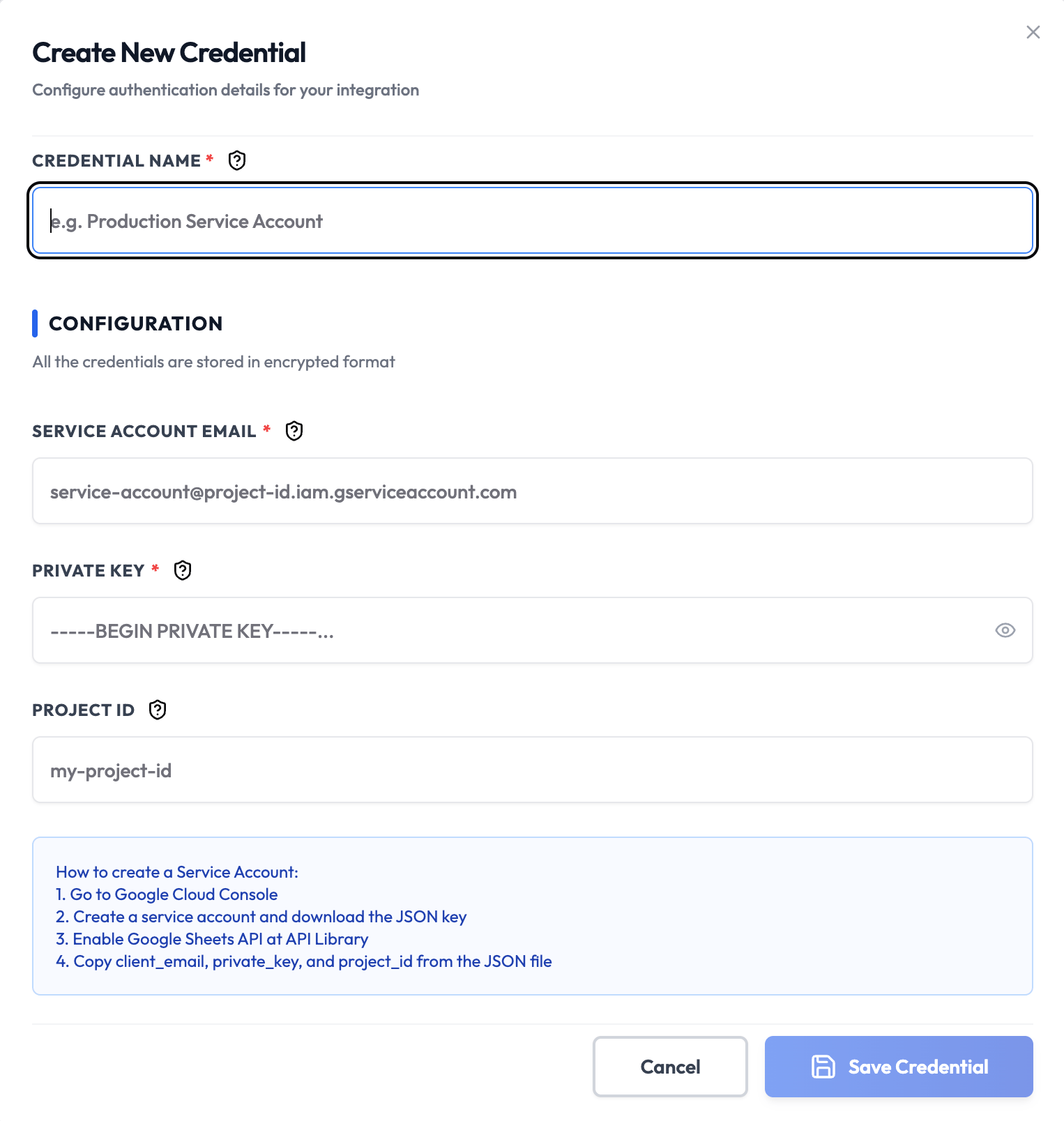
- Go to Credentials in your SubverseAI dashboard
- Click Create New Credential
- Select Google Sheets Service Account from the credential types
- Enter a name for your credential (e.g., “Production Service Account”)
- Fill in the required fields from your JSON key file:
- Service Account Email: The
client_emailfield - Private Key: The
private_keyfield (including-----BEGIN PRIVATE KEY-----header) - Project ID (optional): The
project_idfield
- Service Account Email: The
- Click Save Credential
Required Fields
- Name: A descriptive name for your credential
- Service Account Email: The
client_emailfrom your JSON key file - Private Key: The
private_keyfrom your JSON key file
Optional Fields
- Project ID: The
project_idfrom your JSON key file
Usage Tips
- Grant the service account only the minimum necessary permissions on each sheet
- Rotate JSON keys periodically for security
- Use separate service accounts for different environments (dev/staging/prod)
- Store the downloaded JSON key file securely and never commit it to version control
Troubleshooting
Permission Denied (403): Ensure the sheet has been shared with the service account email Invalid JWT / Private Key Error: Verify theprivate_key value includes the full PEM block — newlines must be preserved (use \n if pasting inline)
API Not Enabled: Ensure the Google Sheets API is enabled in your Cloud project
Service Account Not Found: Confirm the client_email value was copied correctly from the JSON key file
Next Steps
After creating your Google Sheets Service Account credentials:- Build data entry and update workflows
- Automate report generation and sheet population
- Sync CRM or database records to Google Sheets
- Set up scheduled data exports and imports