

Shopify API Credentials
Shopify API credentials allow your SubverseAI agents to interact with Shopify stores for e-commerce automation and integration.Overview
Shopify credentials provide access to:- Store management operations
- Product and inventory management
- Order processing and fulfillment
- Customer data management
- Analytics and reporting
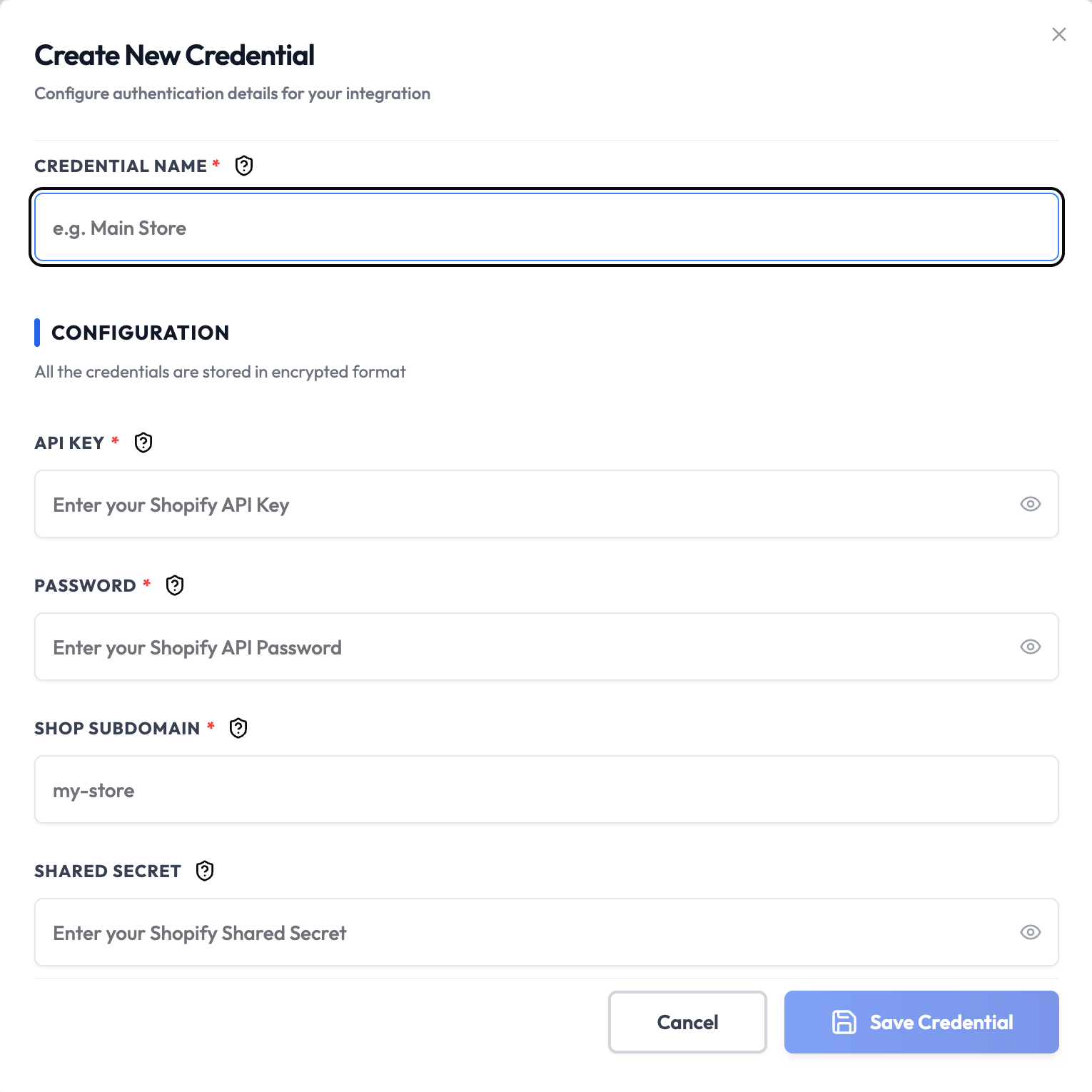
Dashboard Screenshot
Steps to Create Shopify API Credentials
1. Access Shopify Admin
- Log in to your Shopify Admin
- Navigate to Settings > Apps and sales channels
- Click Develop apps
2. Create Custom App
- Click Create an app
- Enter an app name (e.g., “SubverseAI Integration”)
- Select the app developer (your store owner)
- Click Create app
3. Configure Admin API Access
- Go to the Configuration tab
- Click Configure Admin API access
- Select the required permissions:
read_products,write_productsfor product managementread_orders,write_ordersfor order processingread_customers,write_customersfor customer dataread_inventory,write_inventoryfor inventory management
- Click Save
4. Install App and Get Credentials
- Go to the API credentials tab
- Click Install app
- Confirm the installation
- Copy the API key and API secret key
- Copy the Access token (generated after installation)
5. Add to SubverseAI
- Go to Credentials in your SubverseAI dashboard
- Click Create New Credential
- Select Shopify API from the credential types
- Enter a name for your credential
- Fill in the required fields:
- Store URL: Your Shopify store URL (e.g.,
mystore.myshopify.com) - API Key: Your app’s API key
- API Secret Key: Your app’s API secret key
- Access Token: The access token generated after installation
- Store URL: Your Shopify store URL (e.g.,
- Click Save Credential
Required Fields
- Name: A descriptive name for your credential
- Store URL: Your Shopify store domain
- API Key: Your Shopify app API key
- API Secret Key: Your Shopify app API secret
- Access Token: The access token for API access
Usage Tips
- Grant only the permissions your workflows actually need
- Use different apps for development and production
- Regularly review and update app permissions
- Monitor API usage in your Shopify admin
Troubleshooting
Invalid Store URL: Ensure you’re using the correct.myshopify.com domain
Permission Denied: Check that your app has the required Admin API permissions
Token Expired: Regenerate the access token if authentication fails
Next Steps
After creating your Shopify credentials:- Set up product synchronization workflows
- Automate order processing and fulfillment
- Create customer management automations
- Build inventory tracking systems