
File Upload

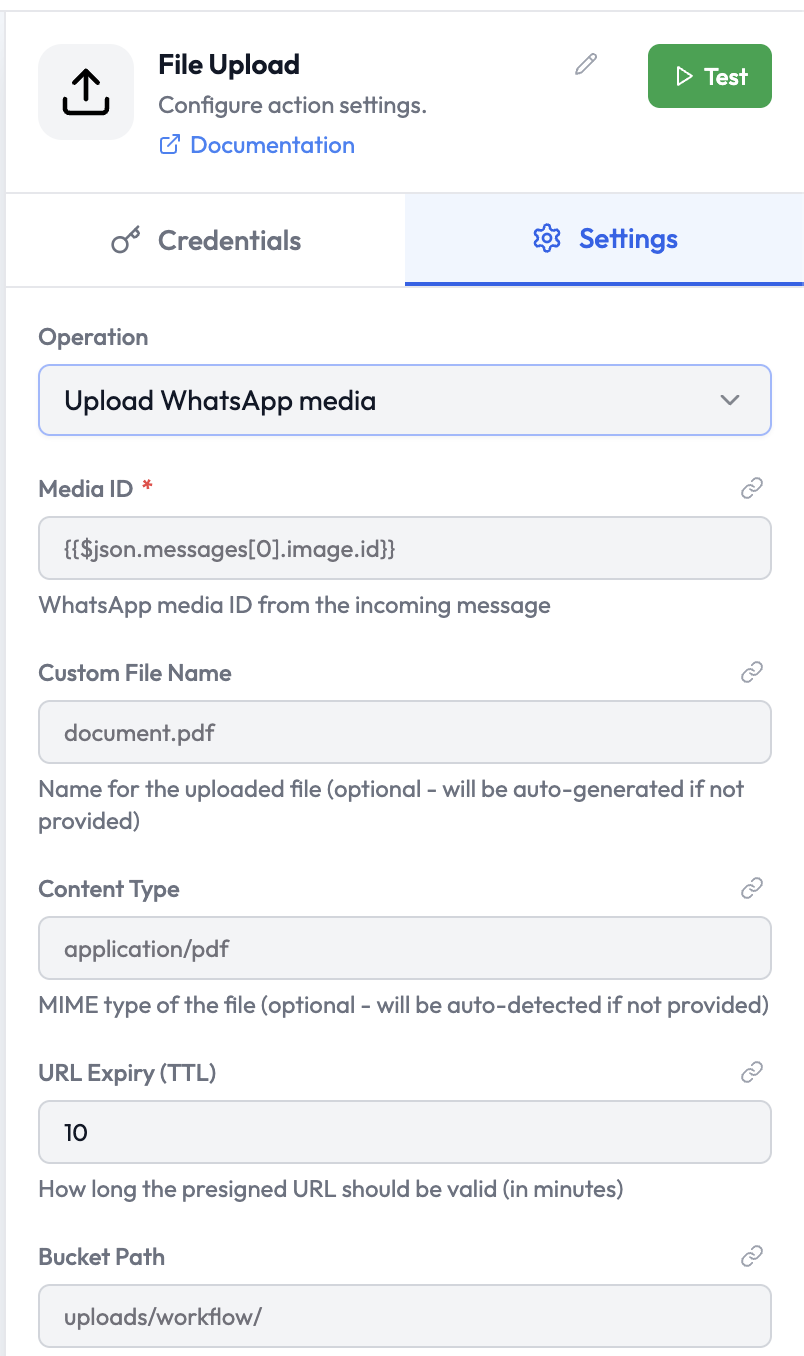
The File Upload node uploads files to cloud storage (S3) from within an orchestration. It supports multiple input methods — direct file, base64 string, public URL, or WhatsApp media — and returns a public download URL. File Upload Node
Use Cases

  • Store files received from a webhook or WhatsApp message in S3
  • Convert base64-encoded file data to a publicly accessible URL
  • Mirror files from an external URL into your own storage
  • Attach uploaded file URLs to records in Airtable or Slack

Node Reference

Parameters

ParameterTypeRequiredDescription
OperationSelectYesThe upload operation to perform (see below)
Media IDStringConditionalWhatsApp media ID from the incoming message (required for Upload WhatsApp Media)
Custom File NameStringNoName for the uploaded file (auto-generated if not provided)
Content TypeStringNoMIME type of the file (auto-detected if not provided, e.g. application/pdf)
URL Expiry (TTL)NumberNoHow long the presigned download URL remains valid, in minutes (default: 10)
Bucket PathStringNoSub-folder path within the storage bucket (default: uploads/workflow/)

Operations

OperationDescription
Upload WhatsApp MediaDownload a media item from WhatsApp using its media ID and upload it to storage
Upload from URLDownload a file from a public URL and upload it to storage
Upload BinaryUpload a binary file received from an upstream node

Output Data

A successful upload returns the storage URL:
{
  "url": "https://subverse-storage.s3.ap-south-1.amazonaws.com/uploads/report-2025.pdf",
  "fileName": "report-2025.pdf",
  "mimeType": "application/pdf",
  "size": 204800,
  "uploadedAt": "2025-03-10T09:00:00.000Z"
}
Reference in downstream nodes:
{{ fileUpload.url }}
{{ fileUpload.fileName }}

  • WhatsApp Trigger — Receive a WhatsApp media message and upload the file
  • Airtable — Attach the uploaded URL to an Airtable record
  • Slack — Share the file URL in a Slack message